
ErpLite · University · Instructor Portal
The Instructor Portal — teach, take attendance and grade, all in one place
Instructors sign in at /instructor to their own branded portal — teaching no longer lives in the admin dashboard. They see only their sections for the current term (with a switcher for past terms; future terms stay hidden). From each section they build the course space in the LMS, run live classes, take smart attendance, and enter and finalize grades that flow straight back to the student transcript.
Signing in, the home & My Sections
How an instructor gets into their portal and finds the classes they teach this term.
Sign in & the homeتسجيل دخول المحاضر · لوحة المحاضر
InstructorInstructor Portal › Sign in · Home/instructor
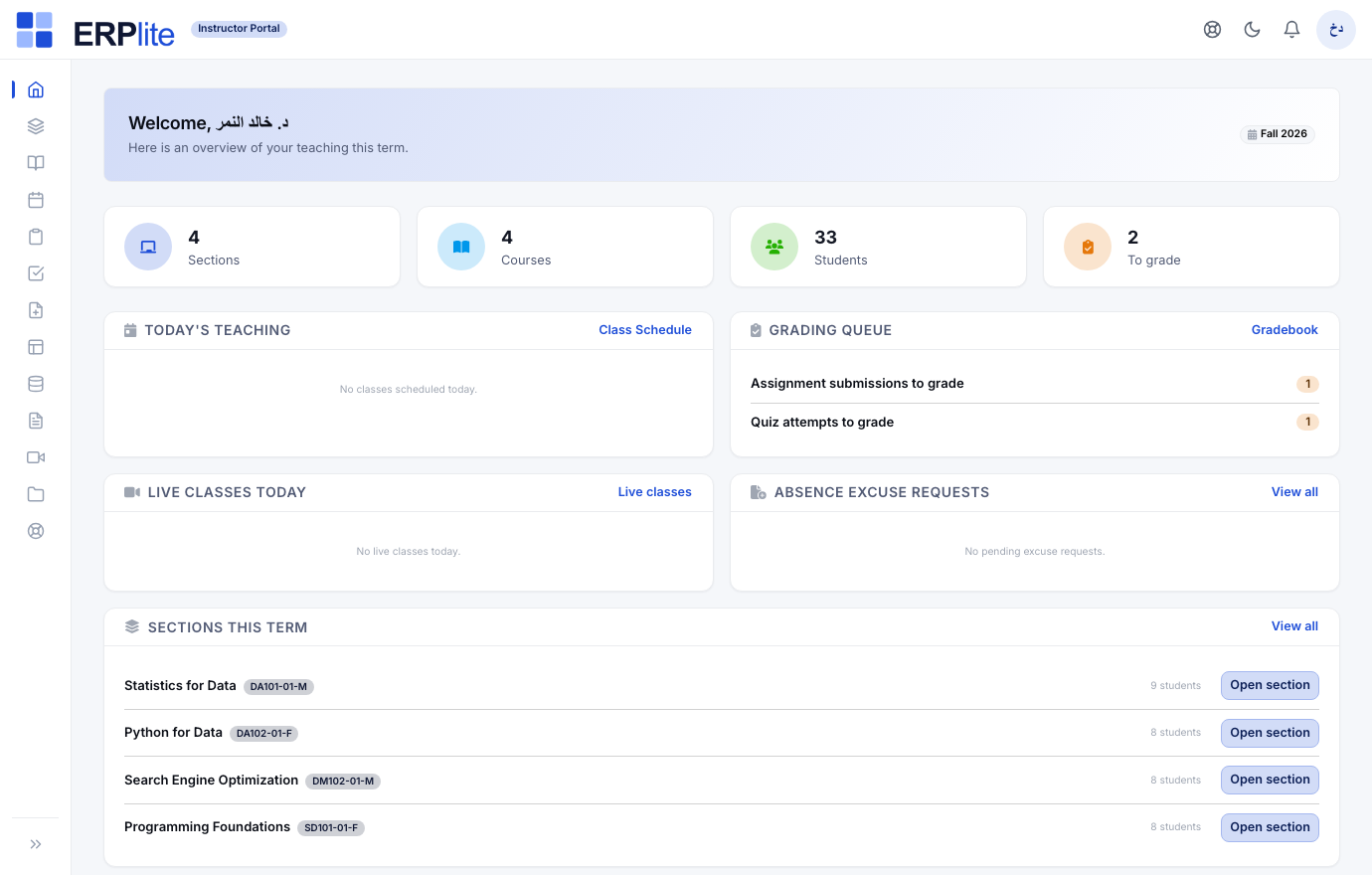
Signs in at /instructor with the email and password from the staff invitation (a reset link is available). The home shows the current term with a switcher and quick links into sections, schedule, attendance and grading.
Instructors are real users linked to their sections, so the portal is scoped to exactly what they teach — the current term by default, past terms via the switcher, future terms hidden.
My Sectionsشُعبي
InstructorInstructor Portal › My Sections/instructor/sections
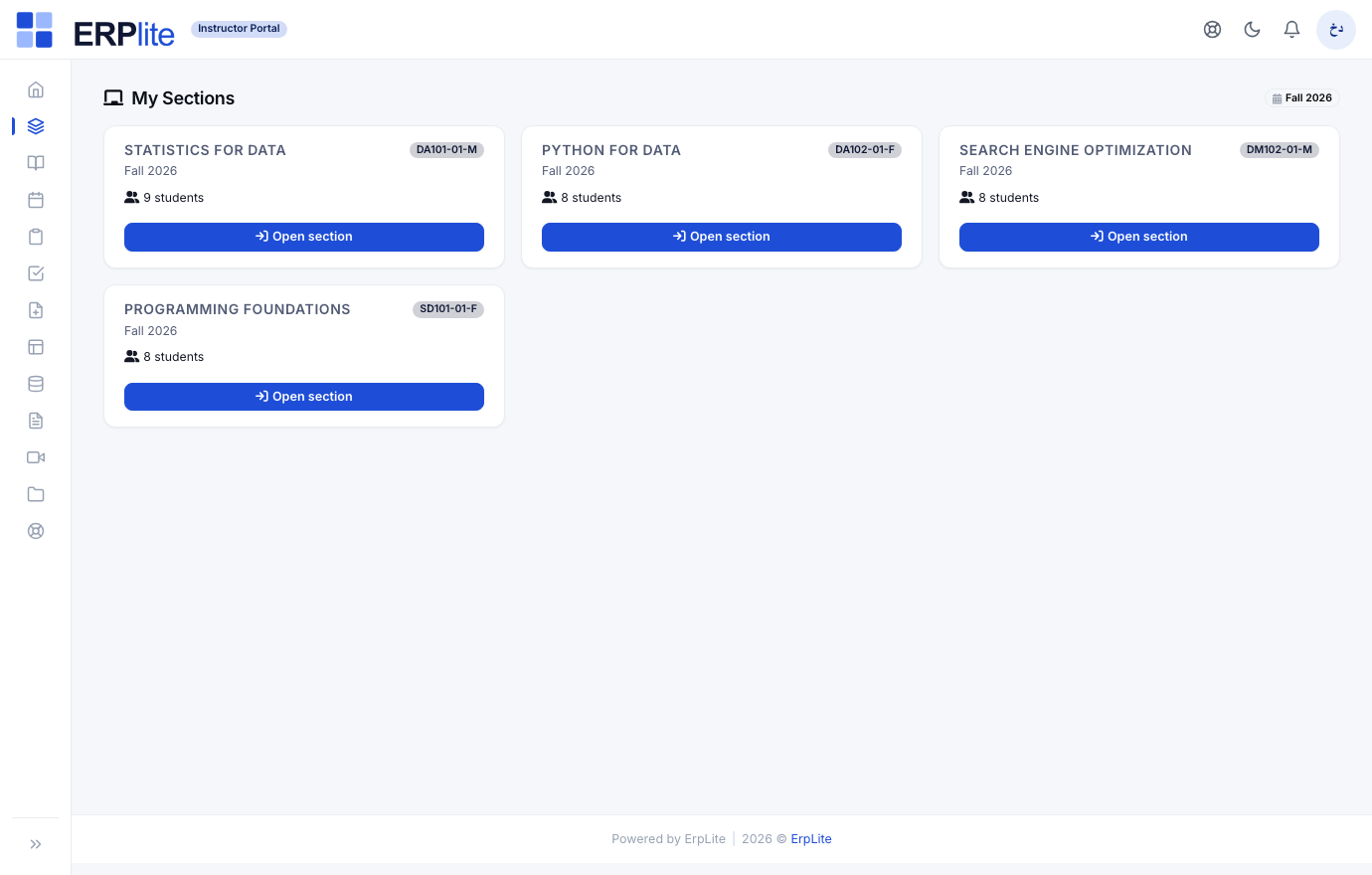
Sees a card per section they teach — course name, code, term and student count — and presses Open section to reach that section’s roster, content, attendance and grades.
Lists the sections assigned to this instructor for the selected term. Substitutes appear on the exact dates they cover, so a stand-in sees the class only when they are actually teaching it.
My Scheduleالجدول
InstructorInstructor Portal › Schedule/instructor/schedule
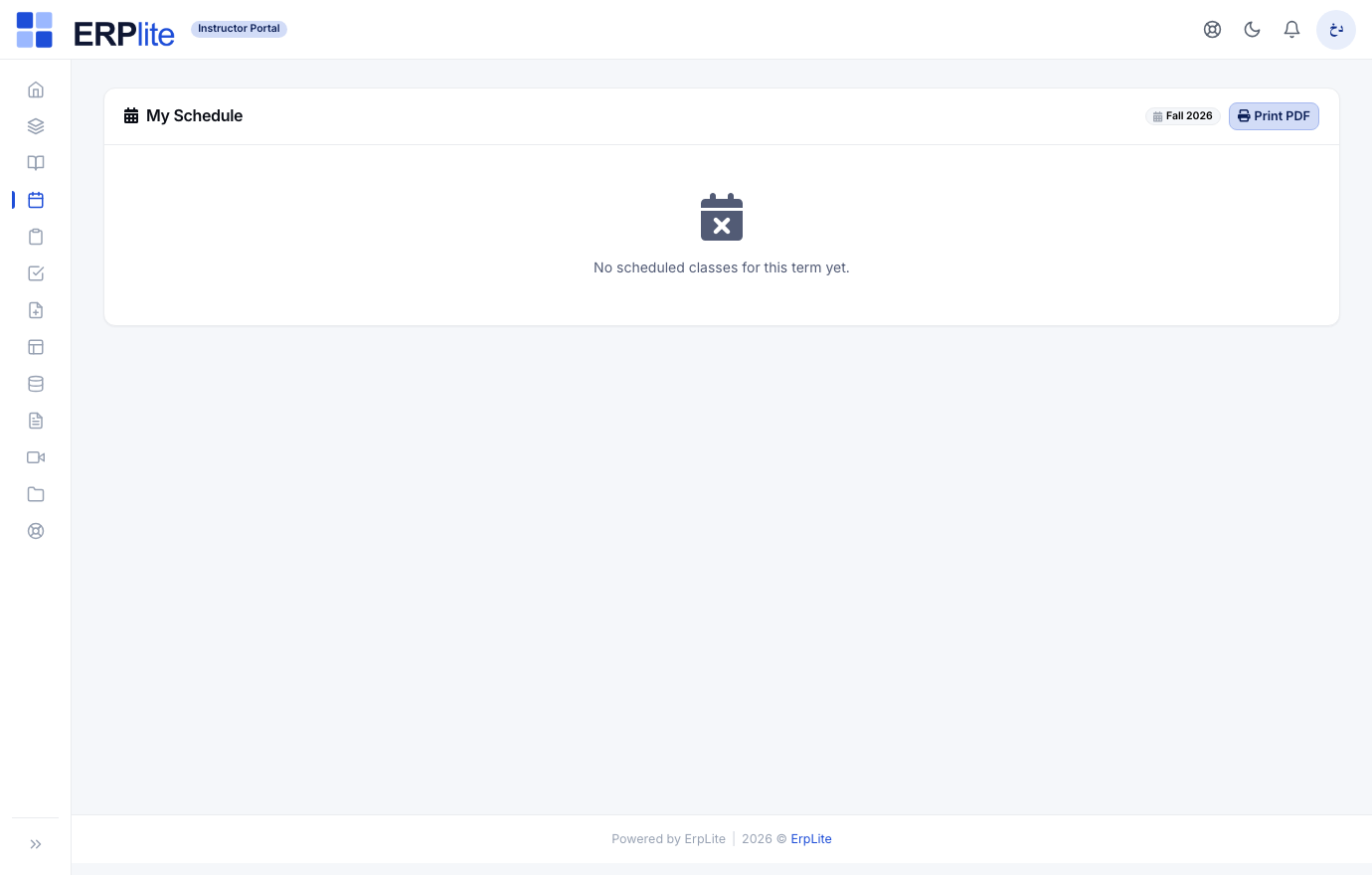
Their weekly teaching timetable — every section’s meeting days and times — with a printable PDF, so they know exactly where and when to be.
Builds the timetable from the section schedules and rejects clashes when a section is assigned, so an instructor is never double-booked.
Teach the term
Build the course space in the LMS and run online lectures. The LMS space already exists from the moment the section was published.
Build the course contentالمقررات · قوالب المحتوى
InstructorInstructor Portal › Courses · Content Builder/instructor/courses
Adds modules and lessons (text, video, files) in the content builder, posts announcements, and sets assignments and quizzes drawn from a reusable question bank. A content template can be cloned into a section on publish.
The LMS course space is created automatically when the section is published — no manual setup. Multiple-choice quizzes are auto-graded, and students see everything under My Learning.
Run a live classالفصول المباشرة
InstructorInstructor Portal › Live Classes/instructor/live-classes
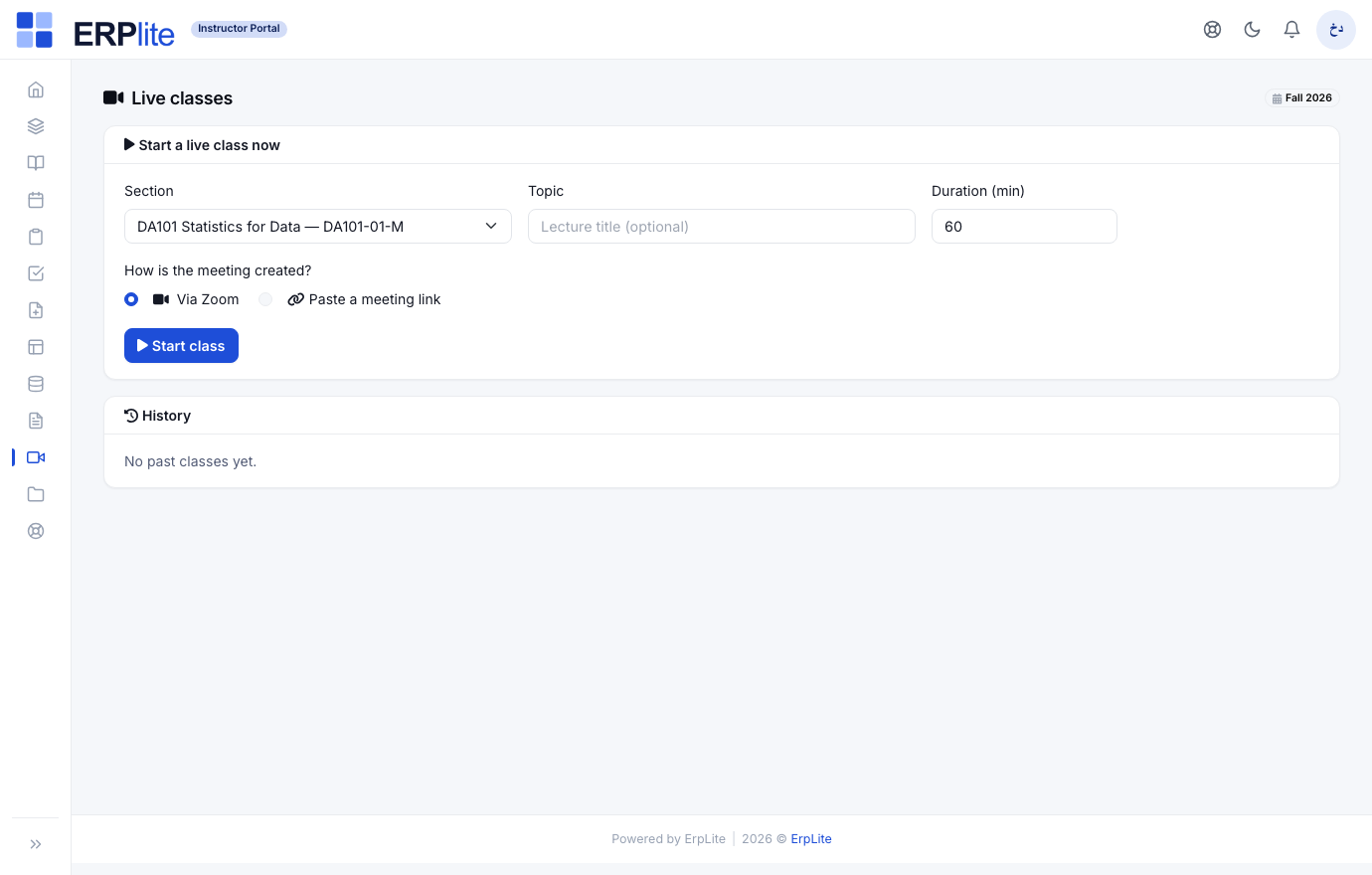
Picks the section, presses Start class — the connected provider (Zoom / Teams / Google Meet) creates the room, or they paste a link — and opens the meeting. One page shows the class running now, the scheduled ones, and the full history with recordings.
Marks the class live, opens today’s attendance session automatically, and notifies every enrolled student with the join link (portal bell + email/SMS/WhatsApp per settings). Scheduled classes get reminders at configurable windows.
Attendance & grades
Take smart attendance that drives each course’s standing, then enter and finalize grades that post straight to the transcript.
Take attendanceالحضور والحرمان
InstructorInstructor Portal › Attendance/instructor/attendance
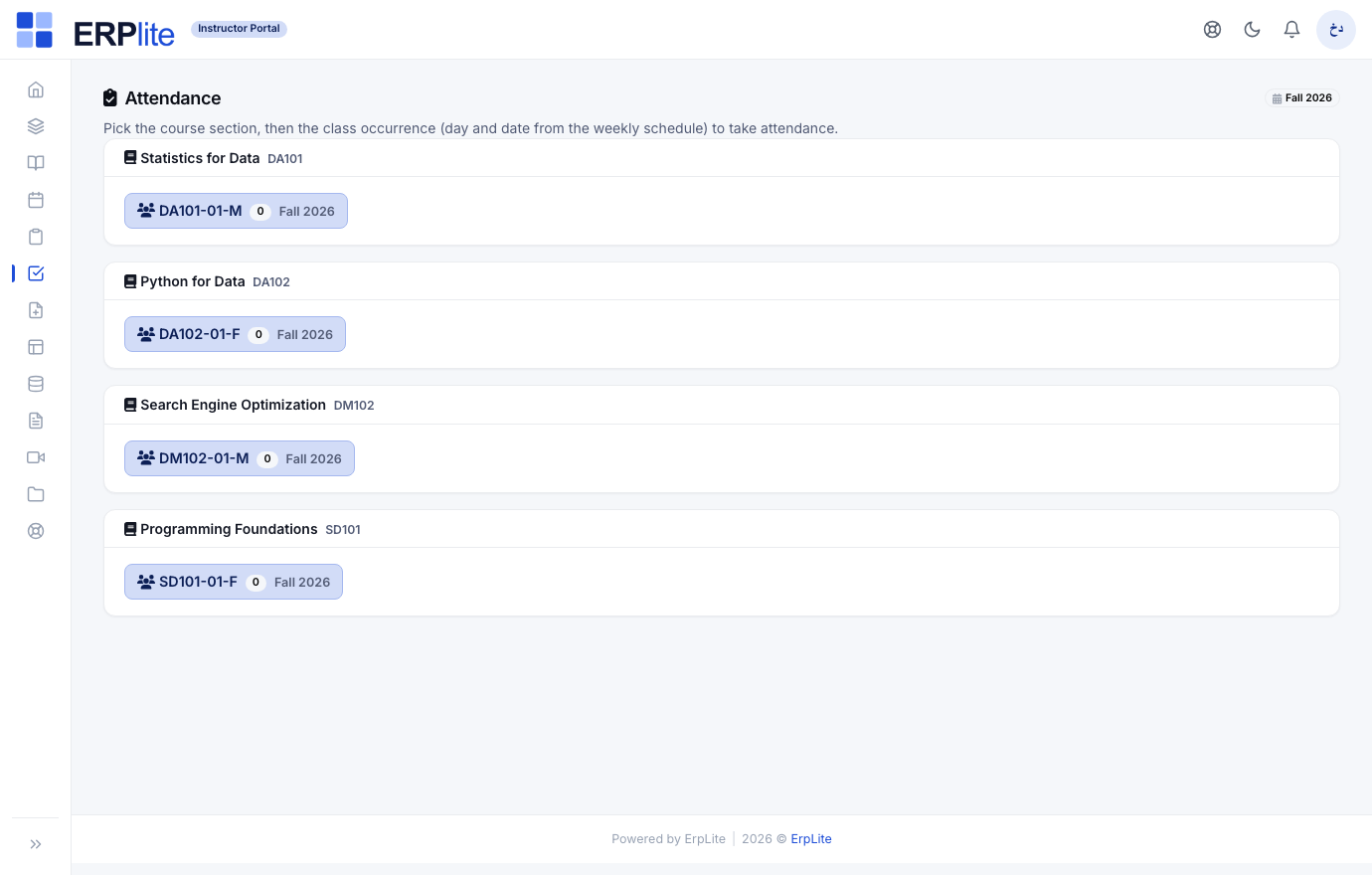
Picks the course, then the session labelled with its weekday and date, and marks each student present, absent, late or excused. Every change saves instantly — no save button — then one Confirm signs the session off.
Students who clicked Join on the live class arrive pre-marked present (joined). It counts each student’s attendance from confirmed sessions only (late = present; excused doesn’t count against them). Crossing the absence threshold flags — or auto-applies — debarment (محروم), which blocks final grading until lifted.
Enter grades & finalizeدفتر درجات المقررات
InstructorInstructor Portal › Gradebook/instructor/gradebook
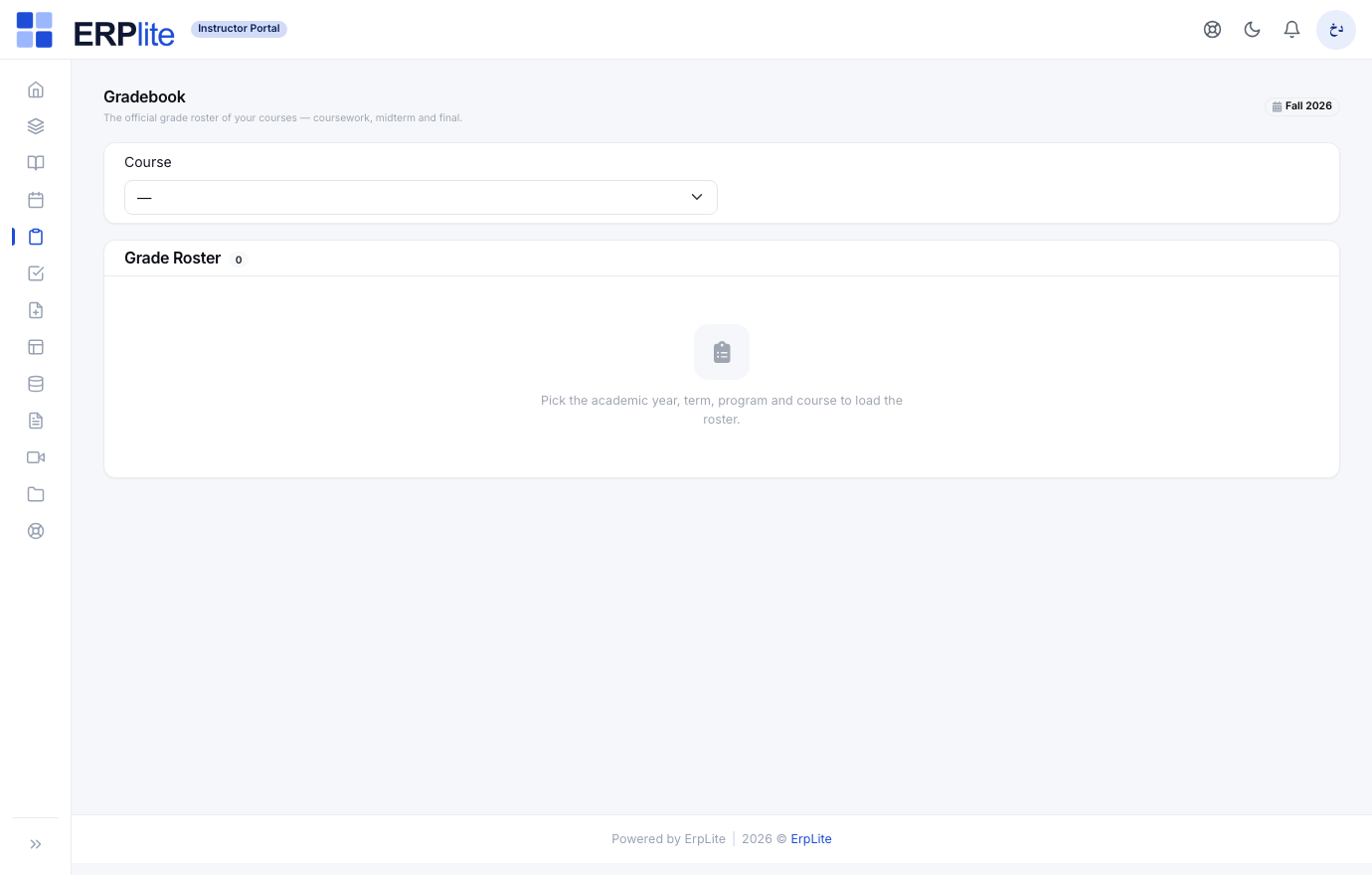
Picks the year, term, program and course to load the grade roster, then enters scores for each component — coursework (أعمال السنة), midterm (الميدترم) and final (النهائي), each with a max score and weight — and presses Finalize & publish grades.
Converts weighted scores into final letter grades on the grade scale and posts each result straight to the student’s academic record — feeding the transcript, GPA and the student’s My Grades page. No re-typing into the SIS. Debarred students are held back until the debarment is lifted.
Excuse requestsطلبات الأعذار
InstructorInstructor Portal › Excuse Requests/instructor/excuse-requests
Reviews a student’s absence-excuse request with its attachment and approves or rejects it.
An approved excuse turns that absence into an excused one, so it no longer counts toward the debarment threshold — keeping attendance-based standing fair.