
ErpLite · Legal practice · Matter lifecycle
From client intake to closed matter — who does what, and what the system handles for you
The Law Firm module runs a legal practice end to end — clients and consultations, conflict checks, matters and hearings, powers of attorney, tasks and billable time, engagement letters, retainers and billing — reusing the core Accounting, Sales and Partners engines so nothing is off-ledger. This manual walks the whole matter in the order you actually work it, names the exact screen for every step, shows a real screenshot of each one, and flags what is done for you automatically versus what you trigger. Your clients get their own branded portal, and e-signature (Emdha) and the court portal (Najiz) plug in when you switch them on.
Set up the office
One-time configuration and master data. Do this once and every case, hearing and invoice inherits it.
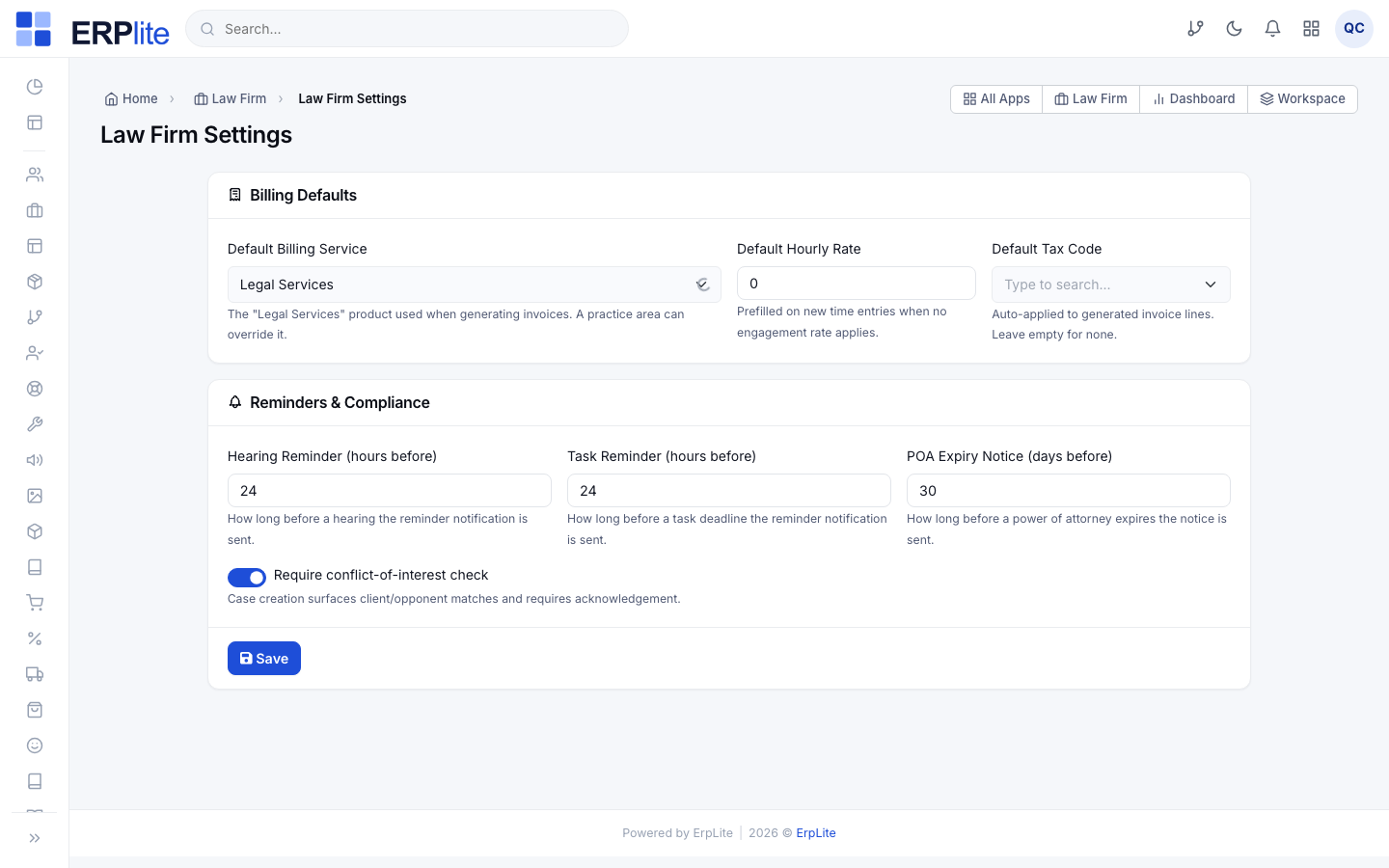
Configure the firm settingsإعدادات المكتب القانوني
Office ManagerLaw Firm › Settings/admin/lawfirm-settings
1) Pick the default billing product (the “Legal Services” item every fee posts against) and the default hourly rate.
2) Choose the default tax code for invoices.
3) Set the reminder windows — how many hours before a hearing and a task deadline the system should notify, and how many days before a power of attorney expires.
4) Turn on Require conflict check if you want intake blocked until a check is run.
These defaults flow into every new engagement, time entry and reminder — you never re-enter them per case. Run “php artisan lawfirm:seed-defaults” once to preload sensible courts, case types, practice areas, stages and outcome types.
Build the master-data catalogالمحاكم · أنواع القضايا · المراحل
Office ManagerLaw Firm › Courts · Case Types · Practice Areas · Case Stages · Hearing Outcomes · Expense Types/admin/law-courts
Fill in the small catalogs a case draws from, each on its own screen:
• Courts (المحاكم) — court, circuit and city.
• Case Types (أنواع القضايا) — civil, criminal, commercial…
• Practice Areas (مجالات الممارسة) — litigation, corporate… each can override the billing product.
• Case Stages (مراحل القضايا) — with colours and an “is closing” flag.
• Hearing Outcome Types (نتائج الجلسات) — each with a “requires next hearing” flag.
• Case Expense Types (أنواع مصروفات القضايا) — court fees, expert fees, transport…
These lists populate the dropdowns on the case, hearing and expense forms — so data entry later is a quick pick, and your reports group cleanly by court, area and stage.
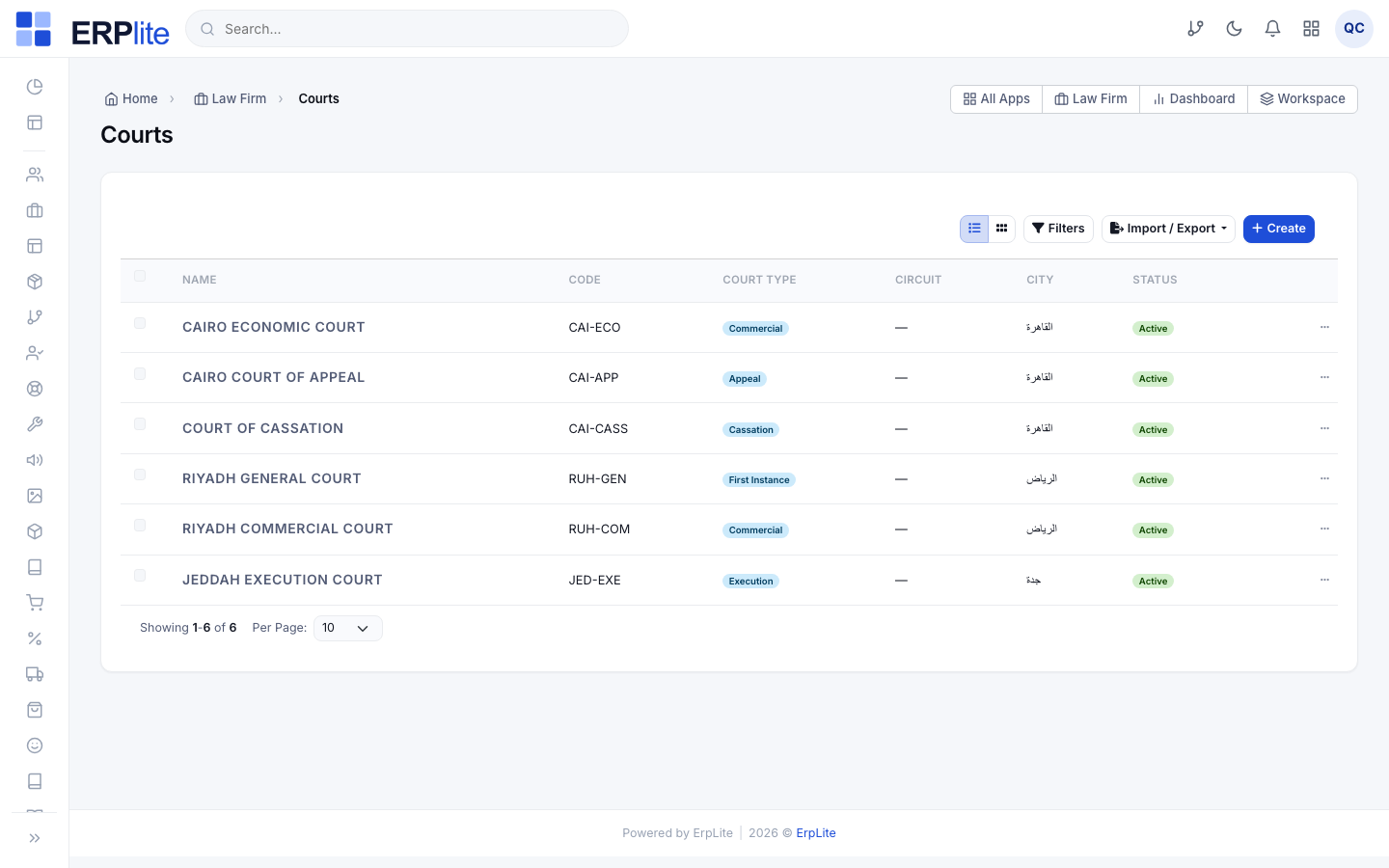
Only the Office Manager reaches the settings and catalog screens; Lawyers work cases but not firm configuration.
Onboard the client
Create the client, log the consultation, and clear conflicts before you accept the matter.
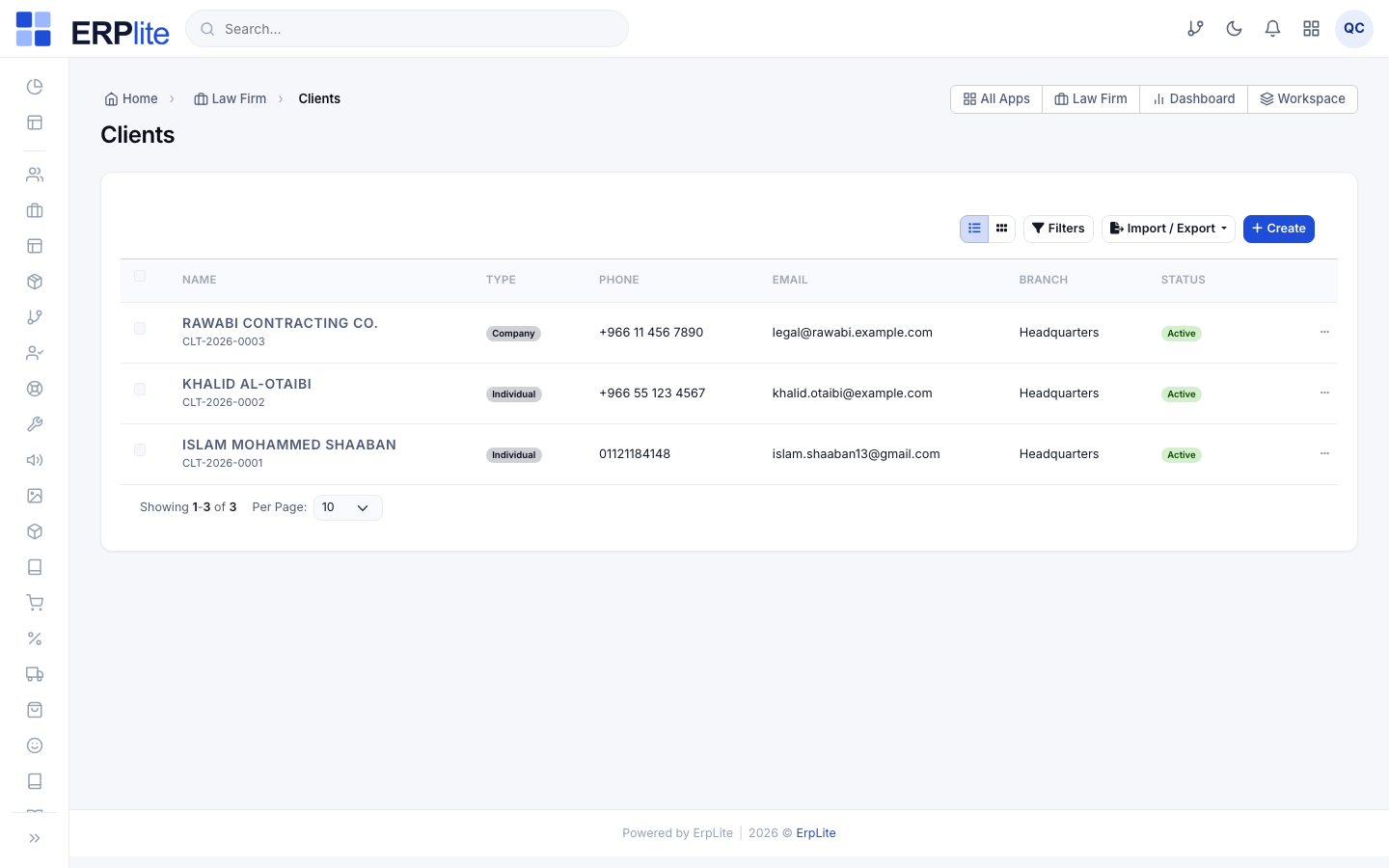
Add the clientالموكلون
Office ManagerLaw Firm › Clients/admin/law-clients
1) Press New client.
2) Choose Individual (فرد) or Company (شركة).
3) Enter the name, national ID / commercial register, contact details and email.
4) Save.
Gives the client a client number and auto-provisions a matching billing partner in the Partners module, so invoices, payments and a partner ledger are ready from day one. The email you enter is what you will later invite to the client portal.
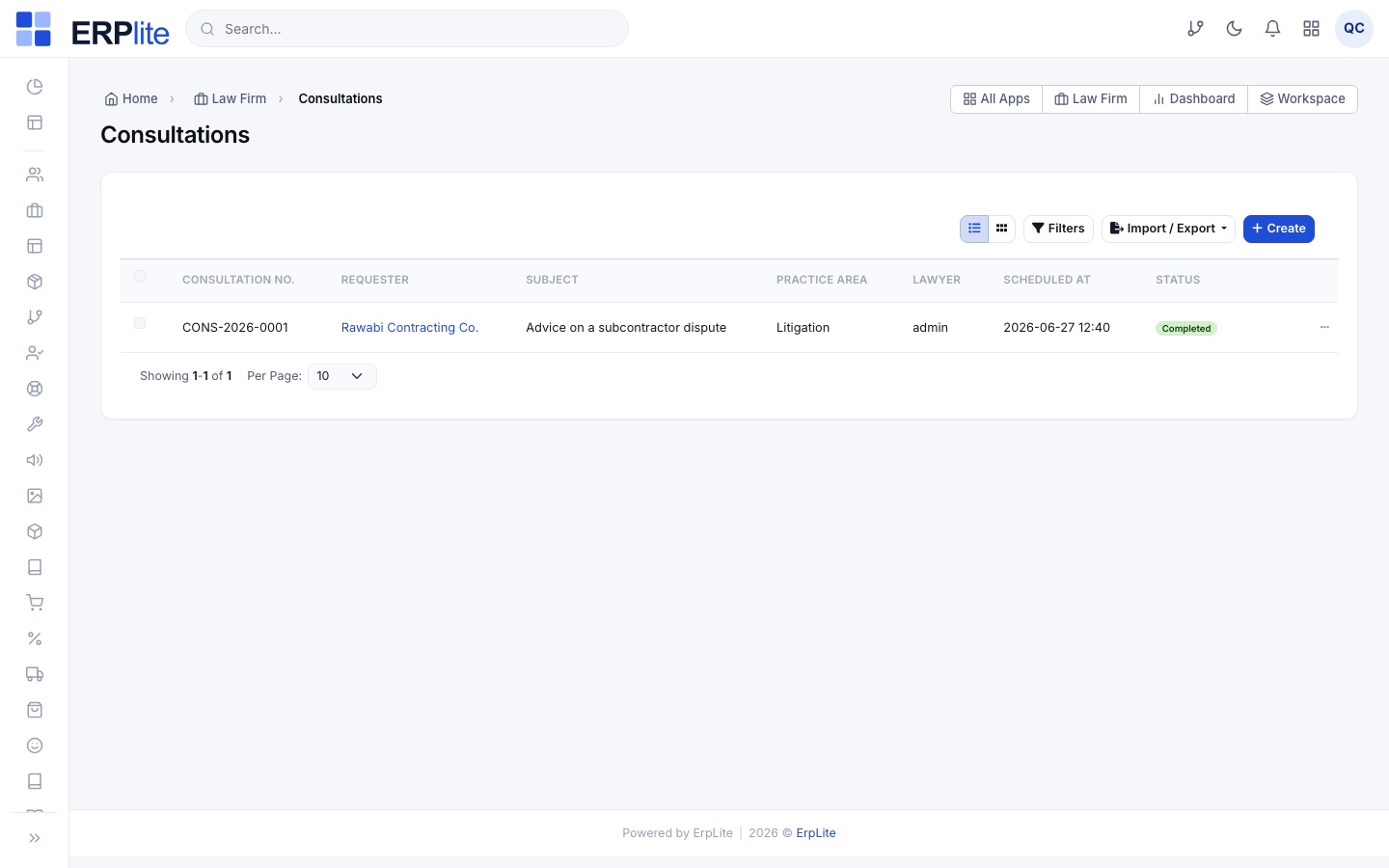
Log a consultationالاستشارات
LawyerLaw Firm › Consultations/admin/law-consultations
1) Create a consultation for an existing client or a prospect (walk-in, website or portal).
2) Record the subject, the advising lawyer, the fee (if any) and notes.
3) Move it through its life: new → scheduled → completed, or cancel it.
4) When the matter is worth taking, press Convert to case.
Keeps a full intake history per client, and Convert to case carries the client, subject and advising lawyer straight into a new case file — no re-typing.
Run a conflict-of-interest checkفحص تعارض المصالح
LawyerLaw Firm › Conflict Check/admin/law-conflict-check
1) Type the name, national ID or company of the prospective client and their opponents.
2) Read the results — the search scans every existing client and every party on every case.
3) Decide: accept, decline, or add a note and escalate.
Surfaces any prior relationship that would put you on both sides of a dispute. If Require conflict check is on in settings, accepting a matter is blocked until a check has been run.
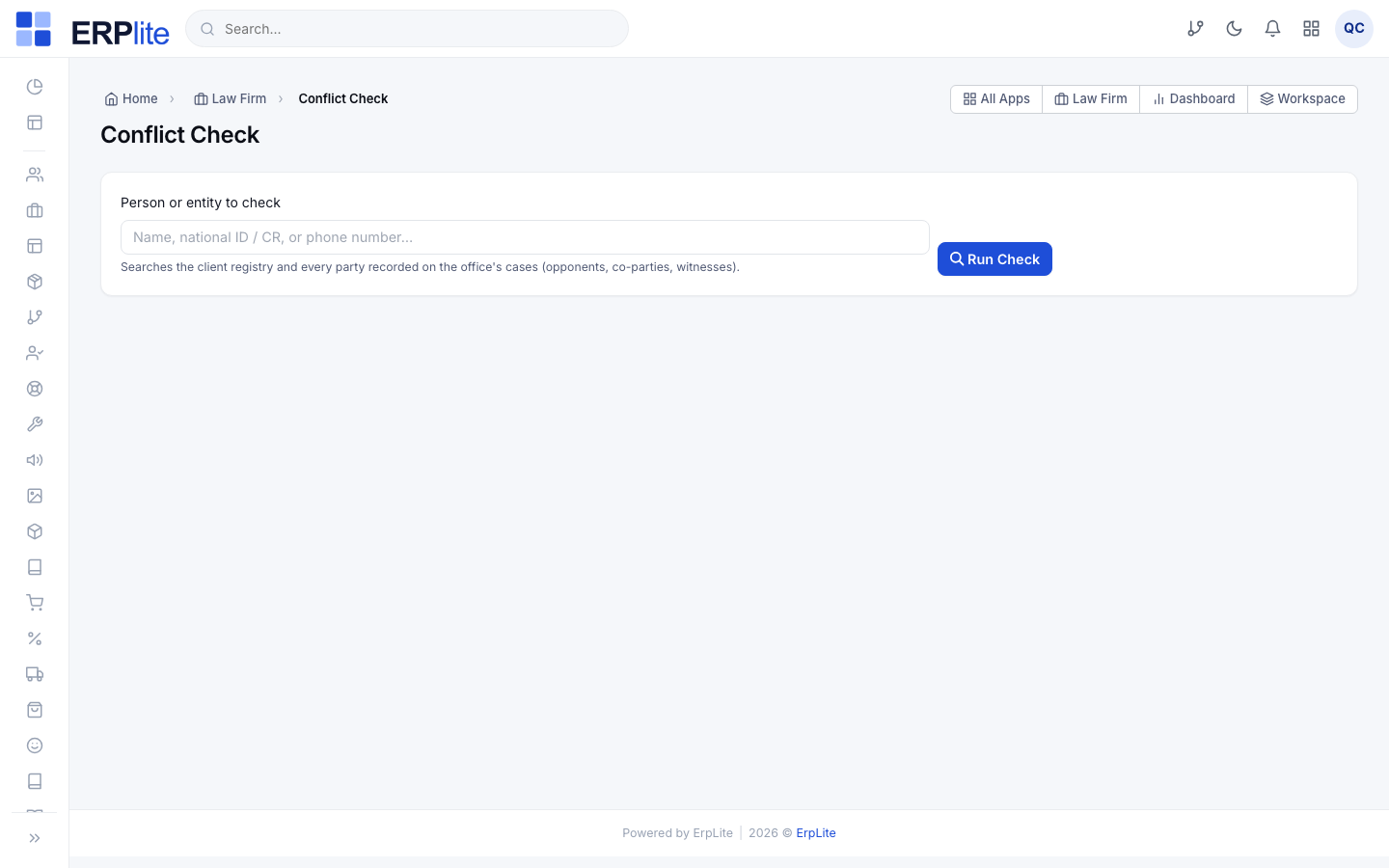
The conflict screen is read-only — it never changes data; it just searches. It reuses the case-read permission.
Open the matter — the case goes live
Creating the case file is the moment the firm formally takes the matter. Everything after this hangs off the case.
Open the case & add parties and lawyersالقضايا
Office Manager / LawyerLaw Firm › Cases/admin/law-cases
1) Press New case and pick the client.
2) Choose the court, case type, practice area and the degree — first instance / appeal / cassation (ابتدائي / استئناف / نقض).
3) Set the opening stage and the claim amount, and enter the court case number if you have it.
4) On the case page add Parties (opponents, witnesses, experts) and assign Lawyers — a lead lawyer plus members or consultants.
Assigns a branch-aware case number, timelines the stage, and starts tracking the next hearing date. From here the case scopes everything — hearings, powers of attorney, tasks, time, expenses and billing all attach to it.
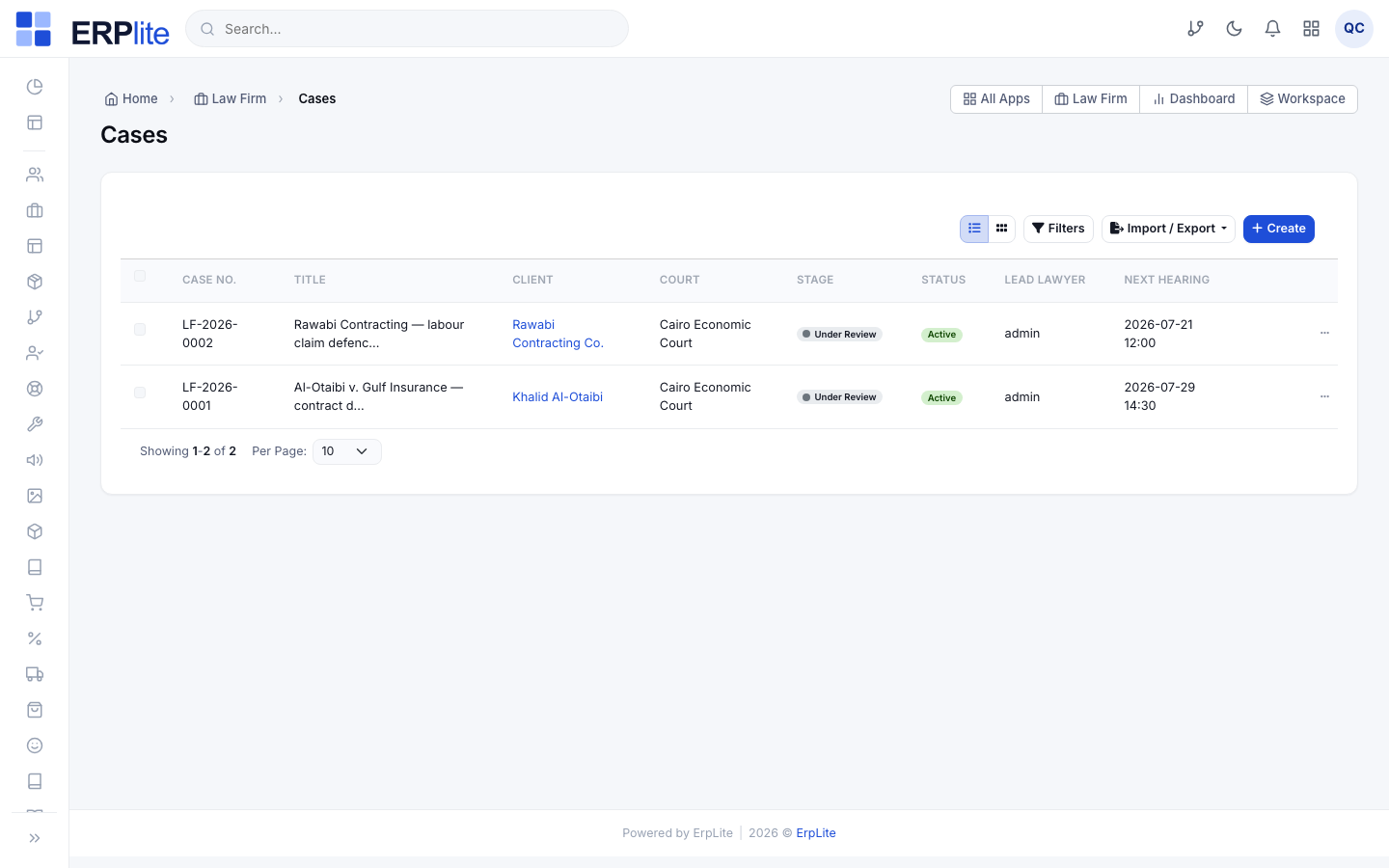
What opening a case sets in motion
The case file is the spine of the module. Once it exists:
- ✓It carries a unique, branch-aware case number and its own timeline of stage changes.
- ✓The lead lawyer and members drive data-scope — a Lawyer sees the cases in their branch; time entries additionally scope to the assignee.
- ✓Every hearing, power of attorney, task, time entry and expense you add later is filed against this case.
- ✓The next-hearing date shown on the dashboard and the caseload agenda is kept fresh from the case’s hearings.
- ◐If the court portal (Najiz) is configured, you can pull the official case file and hearing roll onto the case — otherwise you type them.
You can open a case before or after signing the engagement letter — the module does not force an order. Many firms open the case first, then formalise fees in Stage F.
Powers of attorney
Record the authority that lets your lawyers act for the client, and keep expiry under control.
Record a power of attorneyالتوكيلات
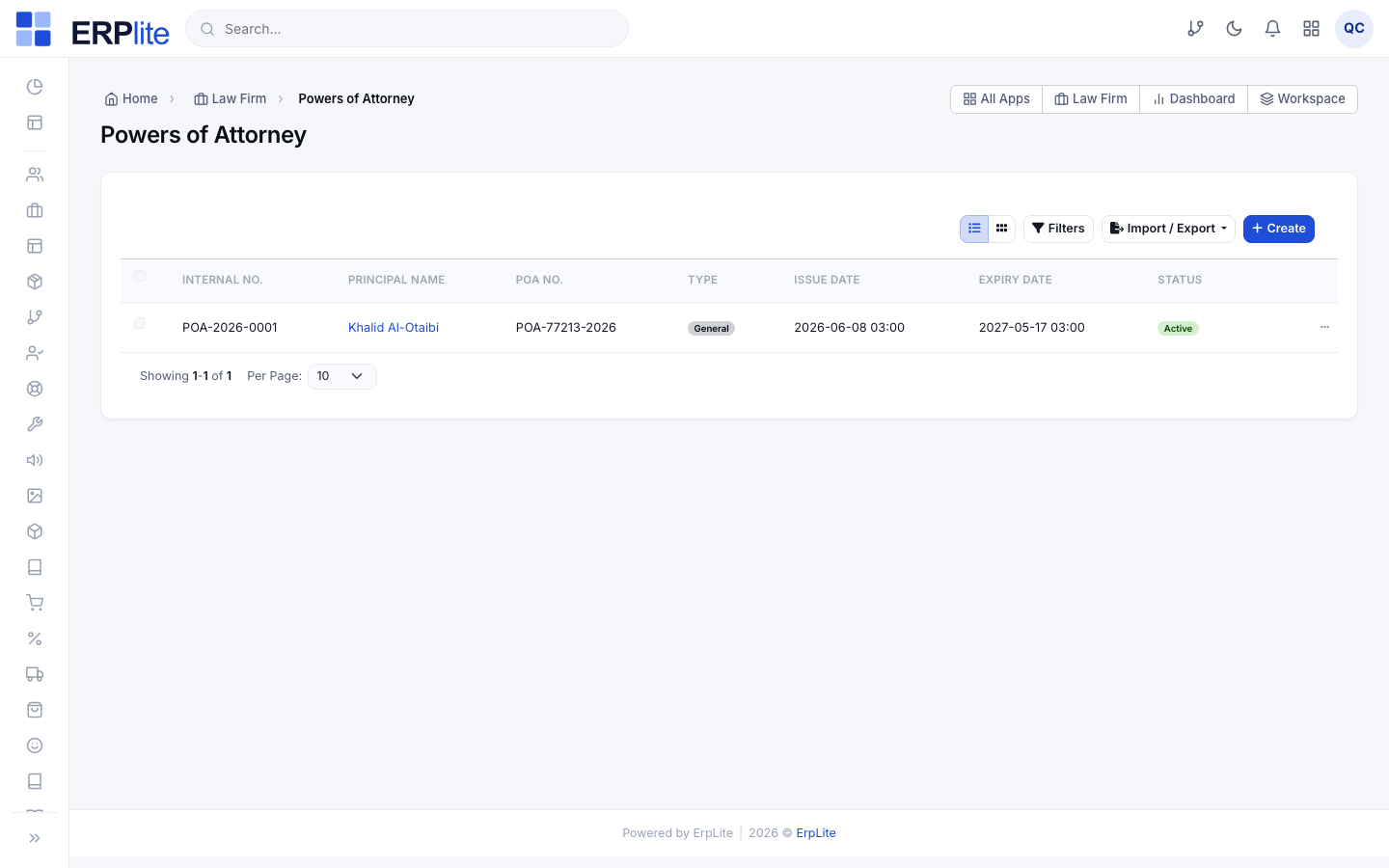
LawyerLaw Firm › Powers of Attorney/admin/law-poa
1) Create a power of attorney: the principal (الموكِّل), the POA number and its notarisation/issue date.
2) Authorise one or more of the firm’s lawyers on it.
3) Attach it to the case, set an expiry date, and upload the scanned document.
4) If a POA is cancelled, press Revoke.
Tracks each POA’s status and expiry, and warns you ahead of time — the POA-expiry reminder window from settings drives a daily notice and the POA Expiry Register report.
Hearings & the court roll
Schedule hearings, record what happened, and let the system chain the next one for you.
Schedule a hearingالجلسات
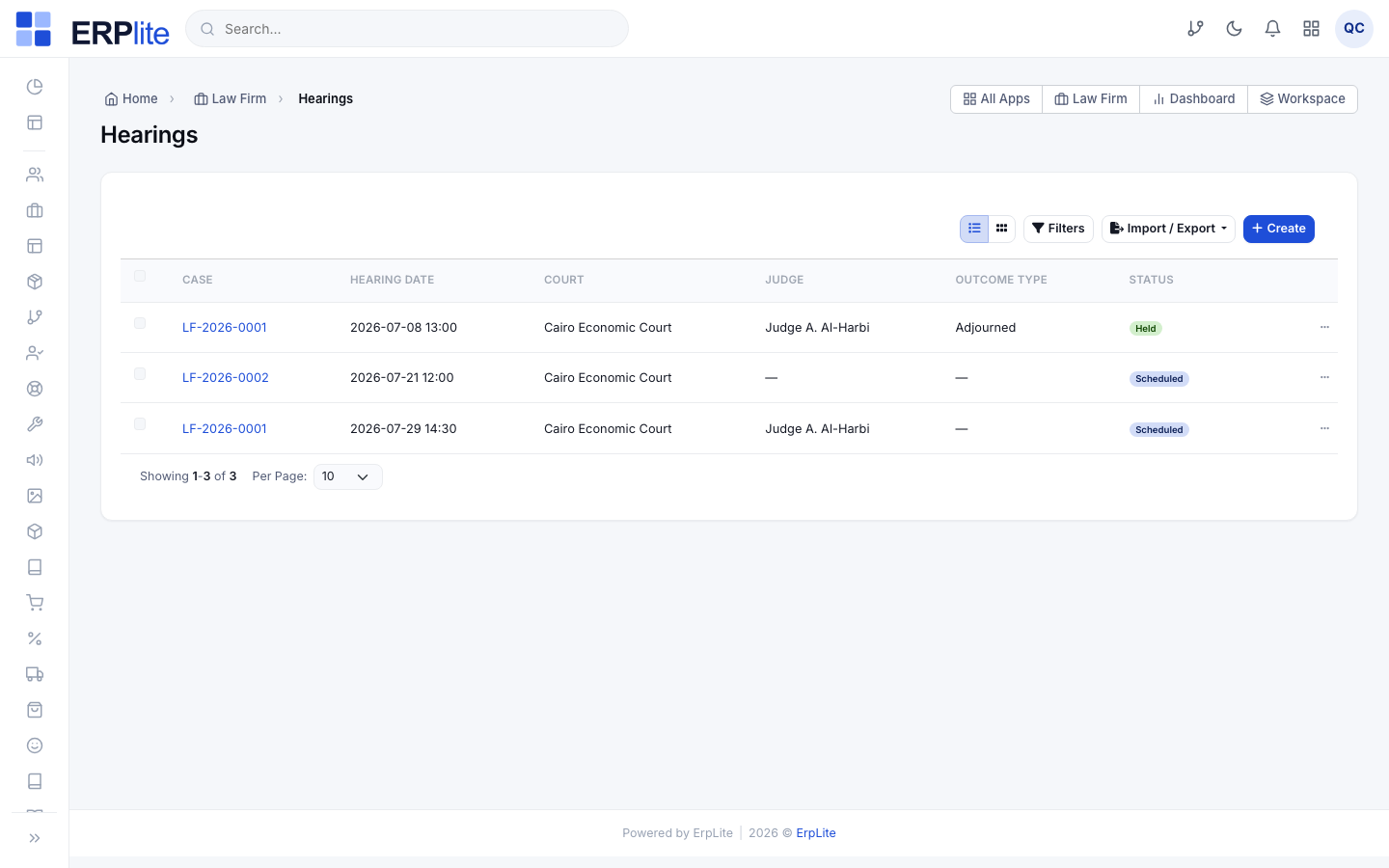
LawyerLaw Firm › Hearings/admin/law-hearings
1) Create a hearing on the case: date and time, court, circuit and the attending lawyer.
2) Add the purpose or agenda for the session.
3) Save — it appears on the case, the dashboard and the caseload agenda.
Refreshes the case’s next-hearing date and schedules a reminder the configured number of hours before the session.
Record the outcomeتسجيل النتيجة
LawyerLaw Firm › Hearings › Record outcome/admin/law-hearings
After the session, open the hearing and press Record outcome:
1) Pick the outcome type (from your catalog — e.g. Adjourned / تأجيل, Judgment / حكم).
2) Write the court’s decision and your notes.
3) If the outcome adjourns the case, enter the next hearing date.
If the chosen outcome type is flagged “requires next hearing”, it auto-creates the next hearing and refreshes the case’s next-hearing date — so an adjourned matter never falls off your radar.
Optional: pull the roll from the court portal (Najiz)
When the Najiz integration is switched on in Settings › Integrations:
- ✓Open a case and press Sync with court portal to fetch the official case data and hearing roll onto the case.
- ✓Every sync is logged to an integration activity timeline, and the provider works in sandbox out of the box (court numbers starting “NJZ-” resolve with demo hearings).
- ◐Not configured? The case simply shows a “not connected” notice and you keep entering hearings by hand — nothing breaks.
Documents & templates
Every paper on the matter as a record — classified, dated, versioned, and shared with the client only when you say so.
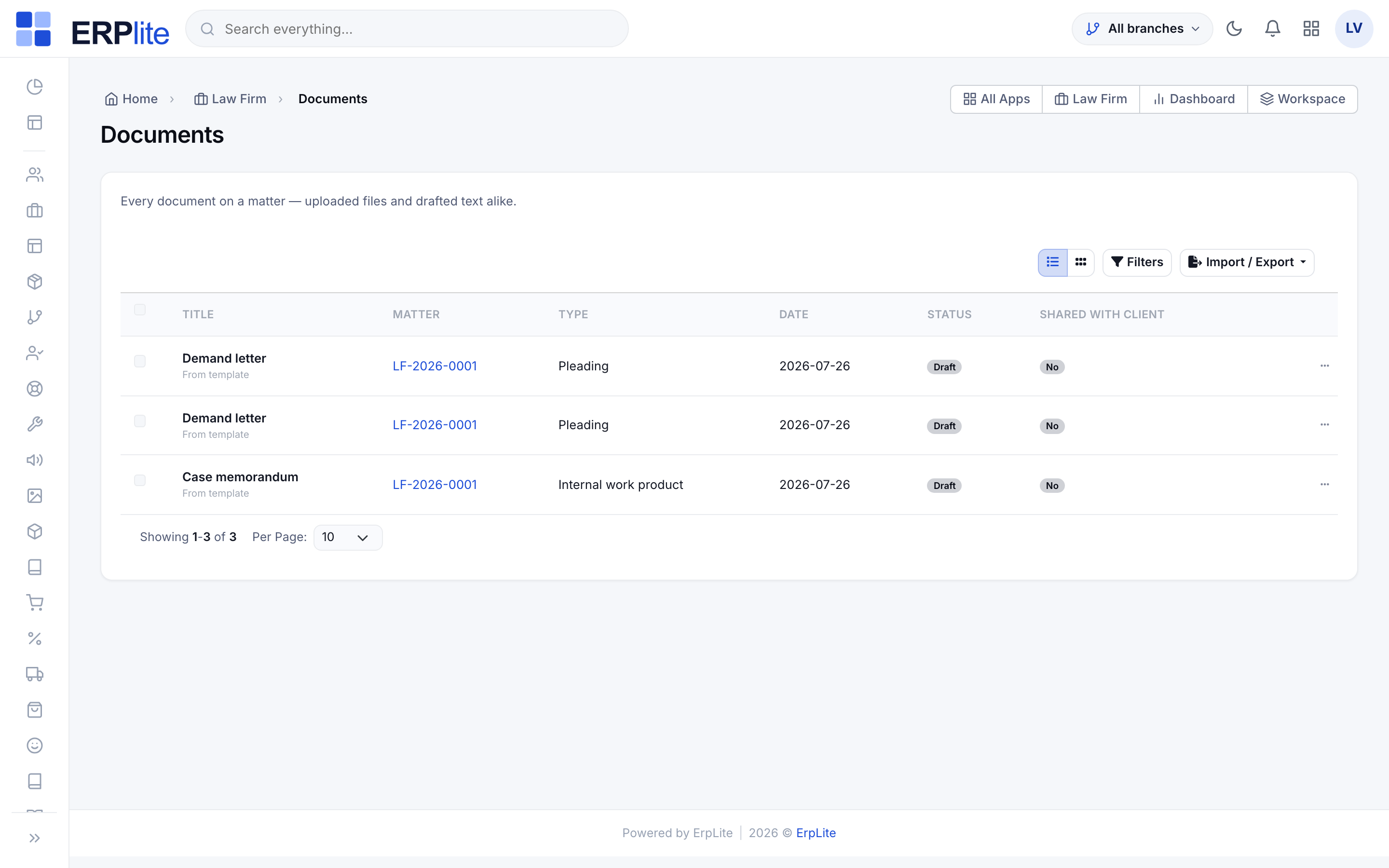
File documents on the matterمستندات القضية
LawyerLaw Firm › Cases › (open a case) › Documents/admin/law-cases
1) Open the matter and go to the Documents tab.
2) Press Attach document and pick or upload the file.
3) Give it a type (pleading, judgment, power of attorney, internal work product…) and a date, so it can be found later.
4) Press the share icon on a row to let the client see that one document — and press it again to take it back.
Each file becomes a document record, not a loose attachment: it carries a type, a date, a version and an explicit “shared with client” state. Nothing is visible in the client portal until you share it, and removing a document withdraws it from the portal in the same moment.
A document on a screened (confidential) matter is invisible to anyone outside the case team — they cannot even tell it exists.
Draft from a precedentقوالب المستندات
LawyerLaw Firm › Document Templates/admin/law-document-templates
1) Once, write the office's precedents — a demand letter, an engagement letter, a case memorandum — in Arabic and English, dropping in placeholders such as {{case.number}} or {{client.name}} from the list beside the editor.
2) On a matter's Documents tab, pick a precedent and press Draft.
3) Read the draft, fill the gaps, then press Mark as final.
It fills every placeholder it can from the matter — case number, court, client, opposing party, hearing dates, power of attorney, fee terms — in both languages at once. Anything it cannot fill is LEFT VISIBLE in the text and listed as a warning, so an unfinished document looks unfinished instead of quietly going out with a blank. Once you mark a document final it can no longer be edited in place: press New version instead, and the earlier version is kept.
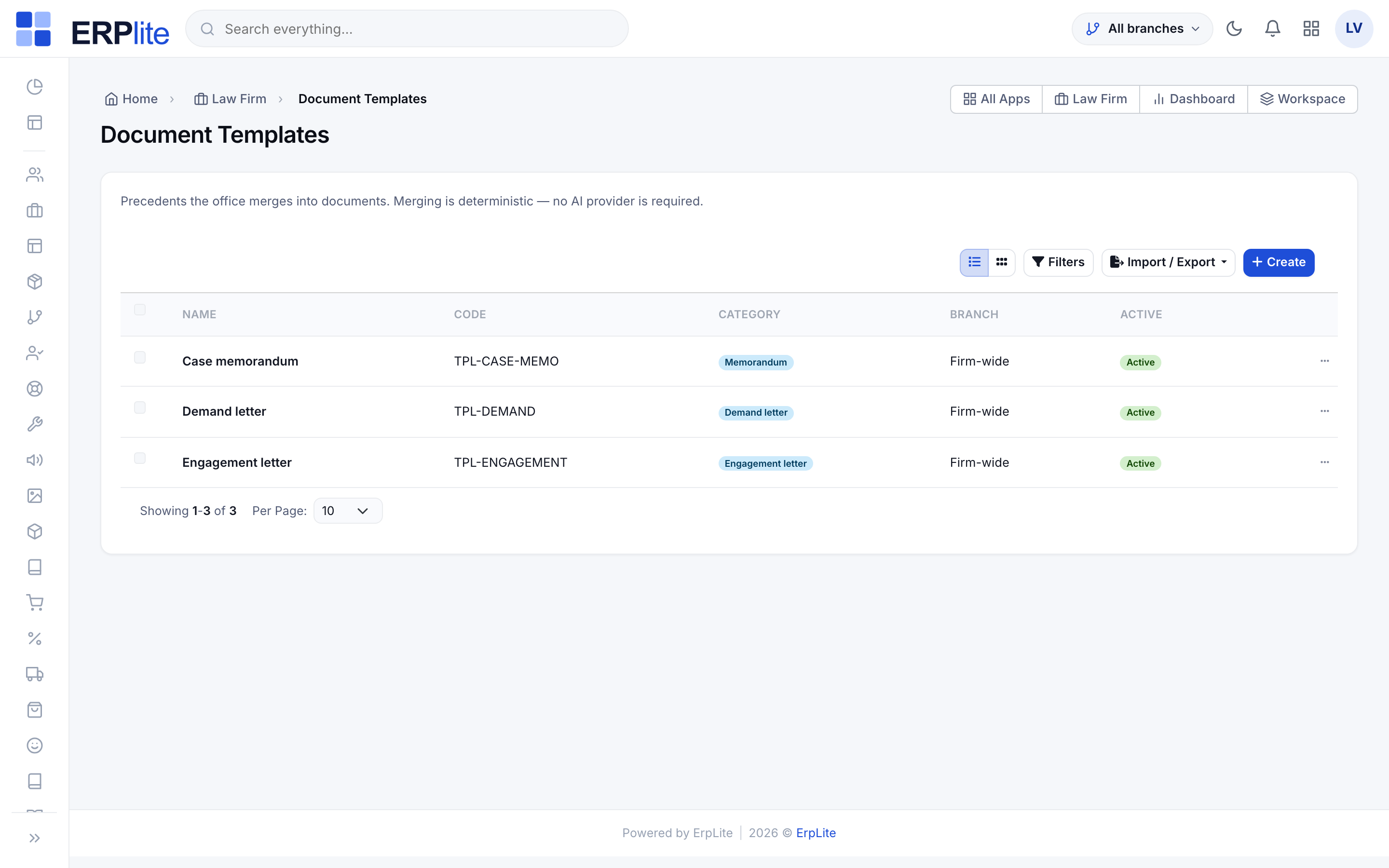
Templates are plain fill-in-the-blank merging — they work with no AI configured at all.
Tasks, time & expenses
The day-to-day work on a matter — deadlines you must not miss, billable hours, and disbursements.
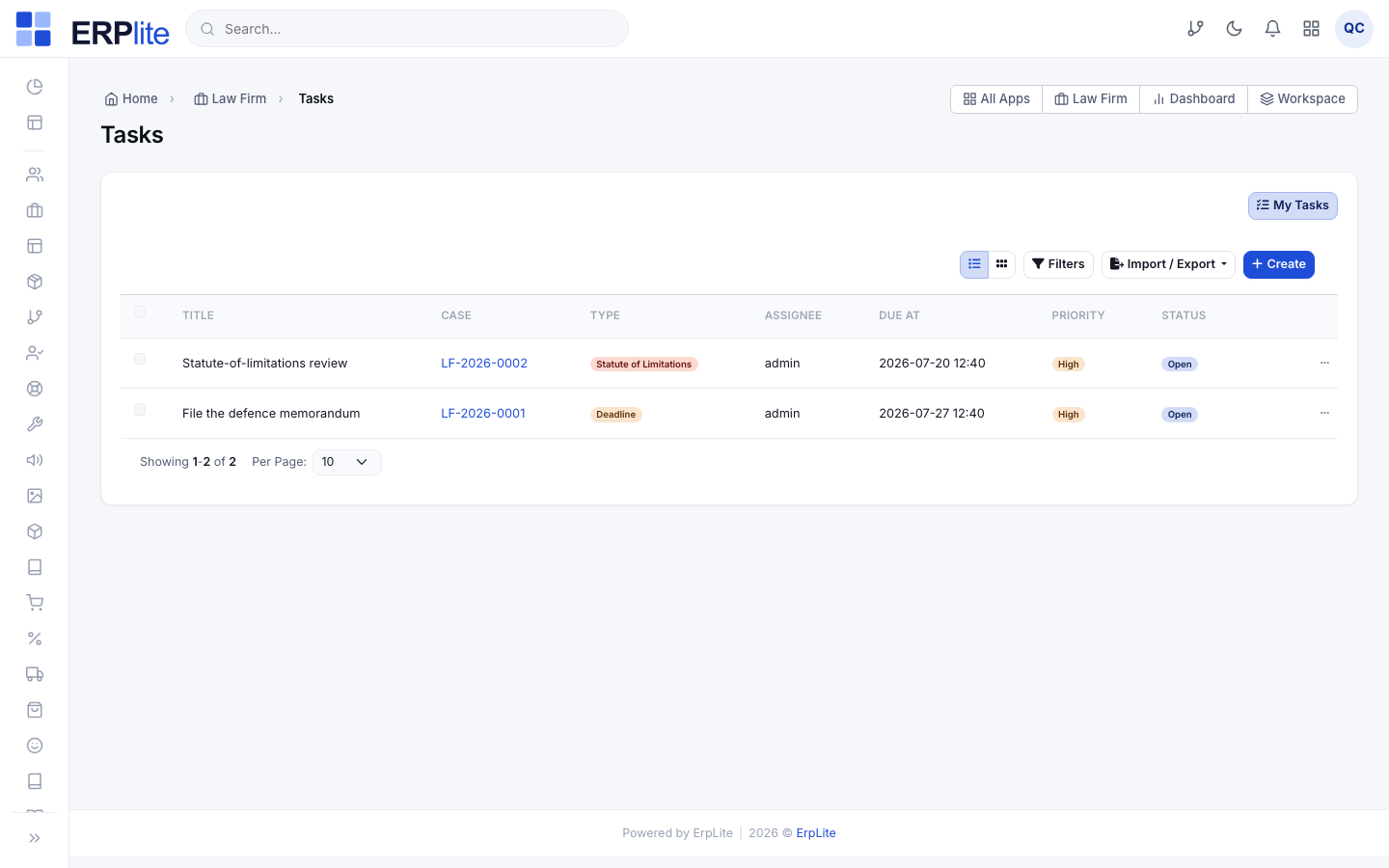
Track tasks & deadlinesالمهام
LawyerLaw Firm › Legal Tasks (Agenda)/admin/law-tasks
1) Create a task on the case: a title, an assignee, a type (a general task, a deadline, or a statute-of-limitations / تقادم date) and a due date.
2) Work from the Agenda view, which groups everything into Overdue · Today · Upcoming.
3) Press Complete when done — or Reopen if it comes back.
Sends a reminder ahead of each deadline (using the task reminder window from settings) and keeps a statute-of-limitations date visible so a matter never lapses silently.
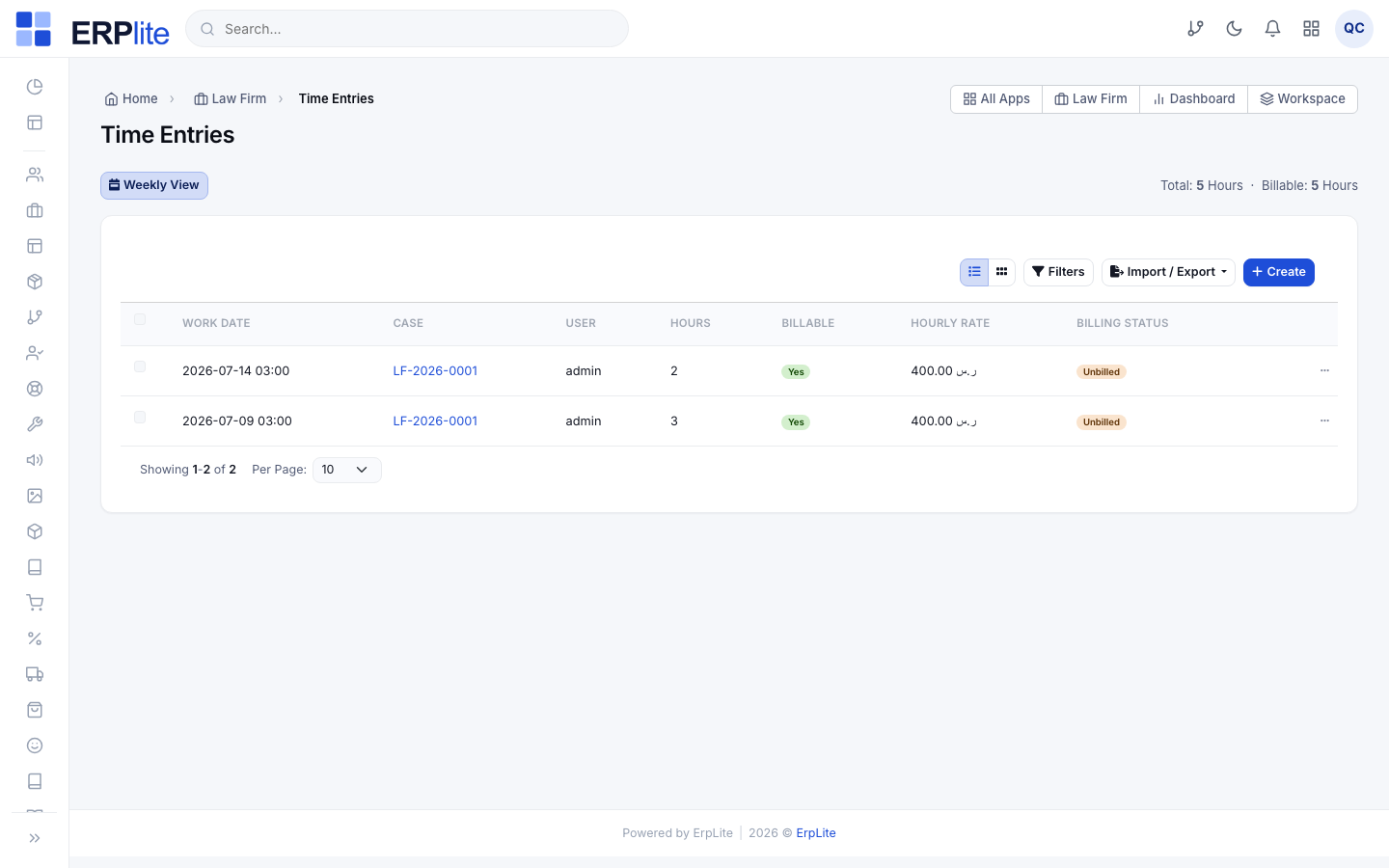
Log billable timeسجلّ الوقت
LawyerLaw Firm › Time Entries (Weekly)/admin/law-time-entries
1) Add a time entry against the case: date, hours, a description of the work, and the hourly rate (defaulted from settings).
2) Mark it Billable (قابل للفوترة) or not.
3) Use the Weekly timesheet to enter a whole week at a glance.
4) If work should not be charged, Write off the entry.
Values each billable entry (hours × rate) and holds it as unbilled work-in-progress. The billing status moves unbilled → billed the moment it is swept into an invoice, or written-off if you exclude it.
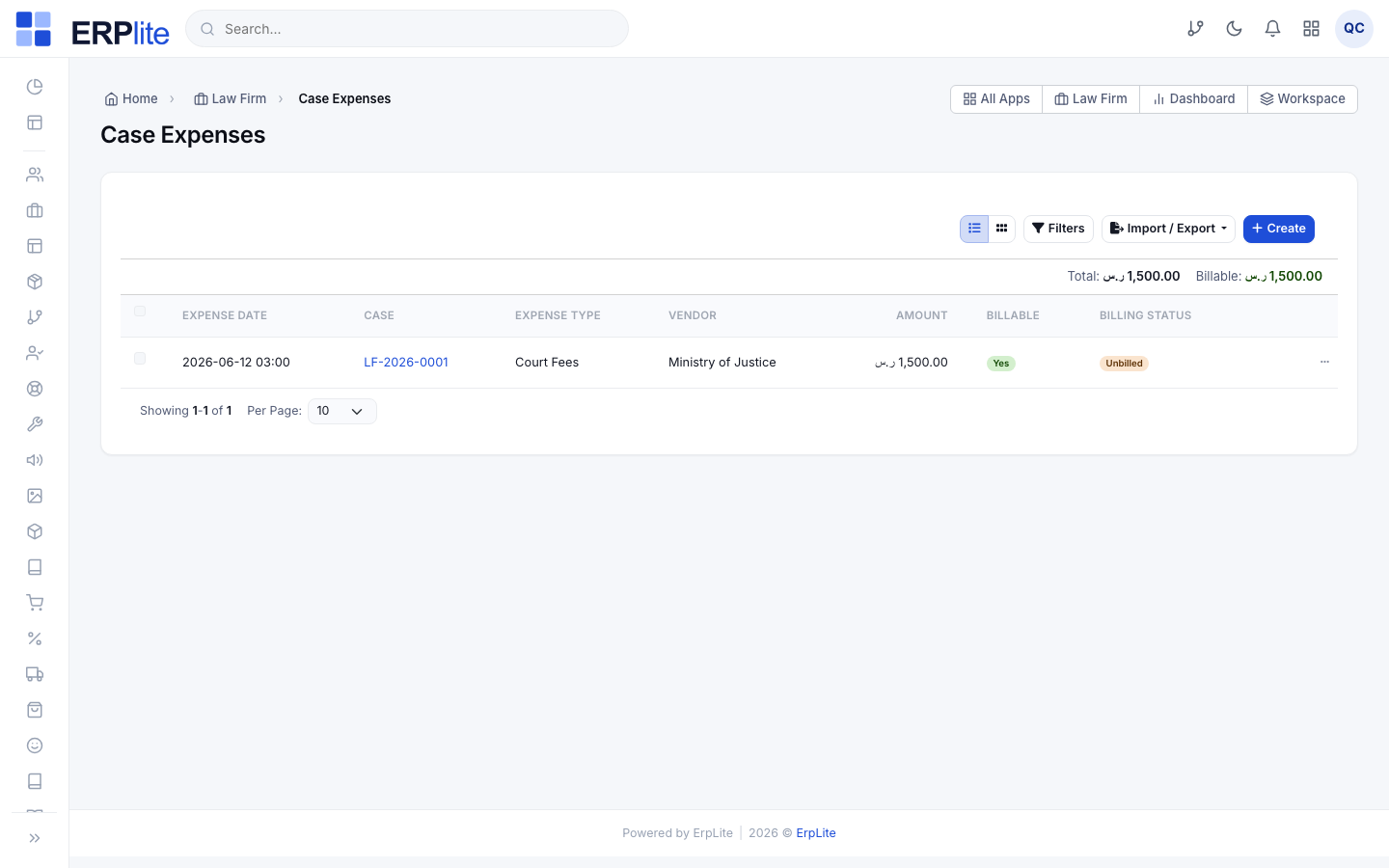
Record case expensesمصروفات القضايا
LawyerLaw Firm › Case Expenses/admin/law-case-expenses
1) Record a disbursement on the case: the expense type (court fee, expert fee, transport…), the amount and date.
2) Attach the receipt.
3) Mark it Billable if it should be passed on to the client.
Keeps billable expenses waiting as unbilled alongside the time entries — the invoice step in Stage F sweeps both together.
Engagement, retainer & billing
Agree the fee, sign the engagement letter, take a retainer, then turn the work into an invoice.
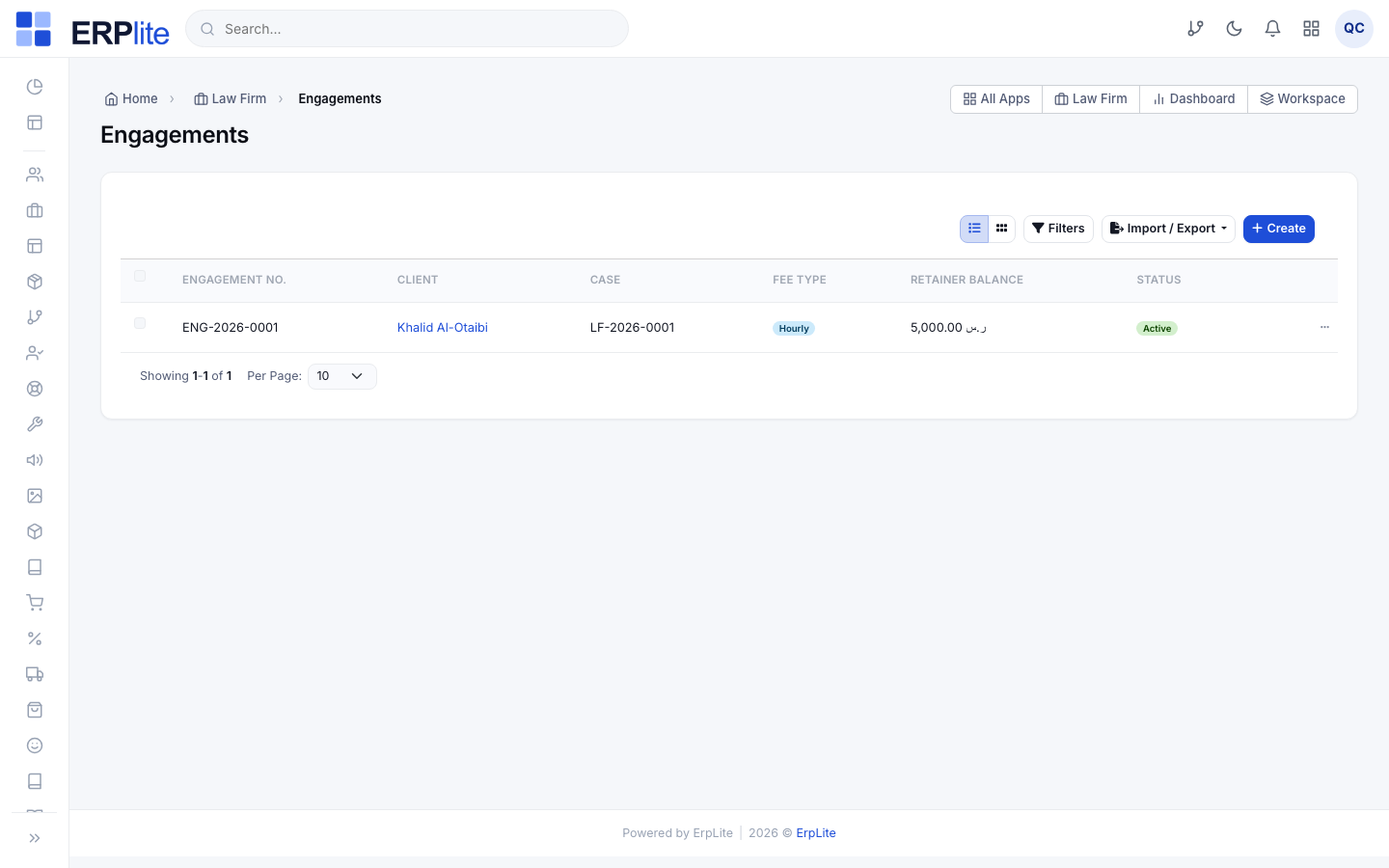
Create the engagement (fee agreement)عقود الأتعاب
Office ManagerLaw Firm › Engagements/admin/law-engagements
1) Create an engagement for the client and case.
2) Choose the fee type: Fixed, Hourly, Retainer, or Contingency (نسبة من المطالبة).
3) Enter the amount / rate / percentage and the scope of work.
4) Save as a draft, then Activate it once agreed.
Holds the agreed fee terms against the case and, on Activate, opens the retainer, signature and invoicing actions on the engagement page.
Send the letter for e-signatureالتوقيع الإلكتروني
Office ManagerEngagement › Signature (Emdha)/admin/law-engagements
On the engagement page: press Send for signature. The client receives a link, signs online, and you press Refresh to pull the signed status. You can open the signing page or download the signed document.
Drives the whole exchange through the Emdha e-signature provider and logs every step. It works in sandbox out of the box; if the provider is not configured, the action shows a “not connected” notice and you can still record a wet signature.
Take a retainer depositالدفعة المقدمة
Office ManagerEngagement › Retainer/admin/law-engagements
1) On the engagement, press Deposit and record the advance the client pays up front.
2) As invoices are raised they draw down the retainer.
3) At the end, Refund whatever is left.
Keeps a retainer ledger (deposit → draw → refund) and shows the live retainer balance on the engagement, so trust money is always accounted for separately from earned fees.
Generate the invoiceإصدار فاتورة
Office ManagerEngagement › Generate invoice/admin/law-engagements
Press Generate invoice on the engagement. Review the draft — it gathers the engagement fee, all unbilled billable time, and all billable expenses on the case — then confirm.
Creates a real Sales/Accounting invoice (through a hidden origin=lawfirm sales order) with the correct tax and ledger entries, flips the swept time and expenses to billed, and draws the retainer down against it. The client can pay it online from the portal.
Billing posts through the core Accounting engine — the same ledger as the rest of ErpLite. Nothing here is off-book.
Where e-signature and the court portal are configured
Both integrations live in one place — the core Integrations hub, not a Law-Firm-only screen:
- 1Go to Settings › Integrations — /admin/settings/integrations — and open the e-signature category to connect Emdha, or the court-integration category to connect Najiz.
- 2Each provider ships a sandbox mode so you can demo signing and court sync without real credentials; activate the live provider when you have your account.
Close, monitor & report
Move the matter to a closing stage or appeal it, then watch the firm from the dashboards and reports.
Change stage, appeal or close the caseتغيير المرحلة · رفع استئناف
Office Manager / LawyerLaw Firm › Cases › Case page/admin/law-cases
On the case page:
• Change stage as the matter progresses (each change is timelined).
• Move to a closing stage (one flagged “is closing”) when the matter ends.
• Or press File appeal (رفع استئناف) to spin up the next-degree case.
• Refund any remaining retainer.
File appeal creates a linked case at the next degree (first instance → appeal → cassation) carrying the client and parties across, so the history stays connected.
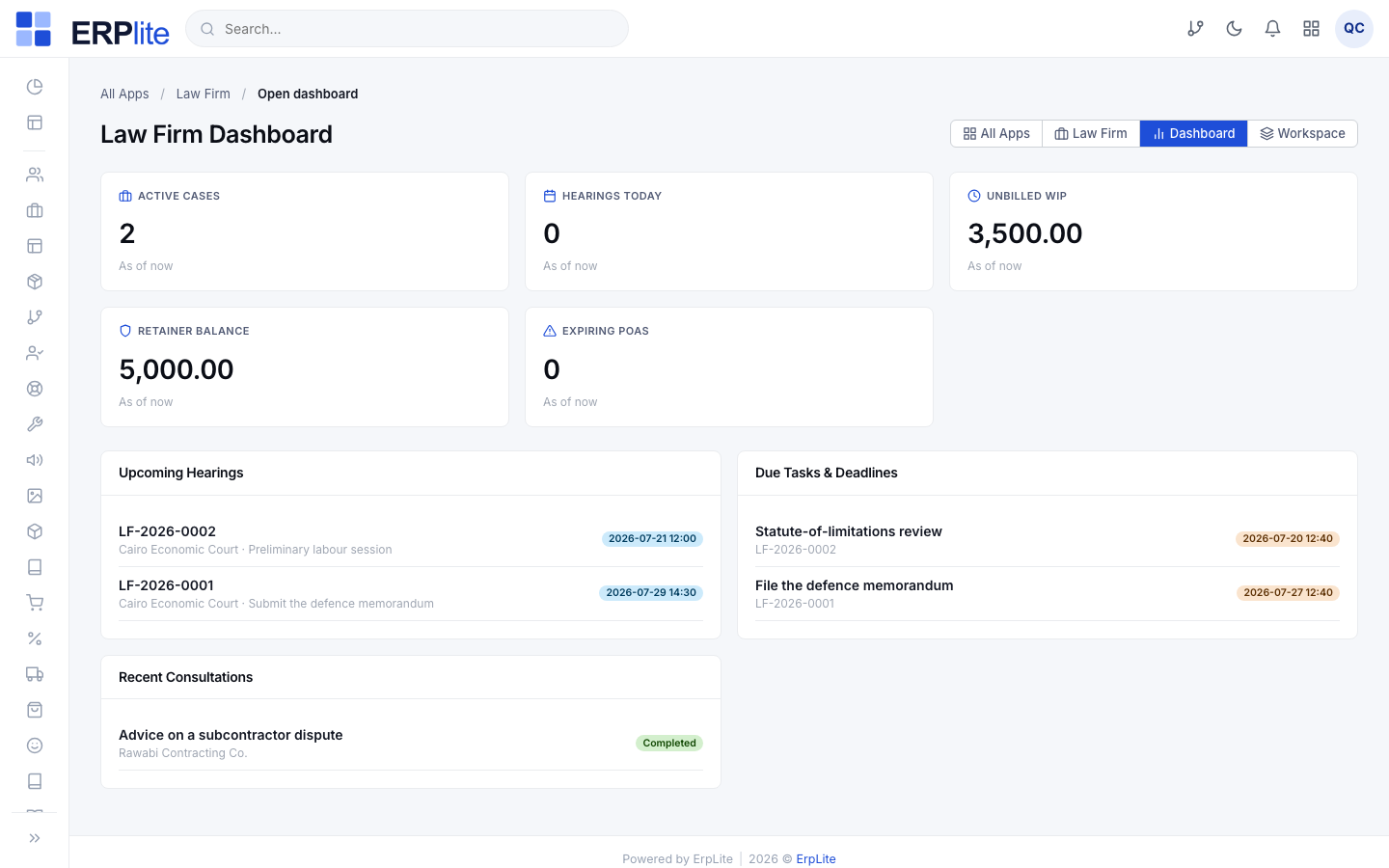
Watch the module dashboardلوحة المكتب القانوني
Office ManagerLaw Firm › Dashboard/admin/m/law-firm/dashboard
Open the module home to see five KPIs at a glance — Active cases, Hearings today, Unbilled WIP (أعمال غير مفوترة), Retainer balance, and Expiring POA — plus panels for upcoming hearings and open tasks. The Operations page is a “today at a glance” caseload agenda.
Computes every KPI live from your cases, hearings, time and retainers — no manual refresh.
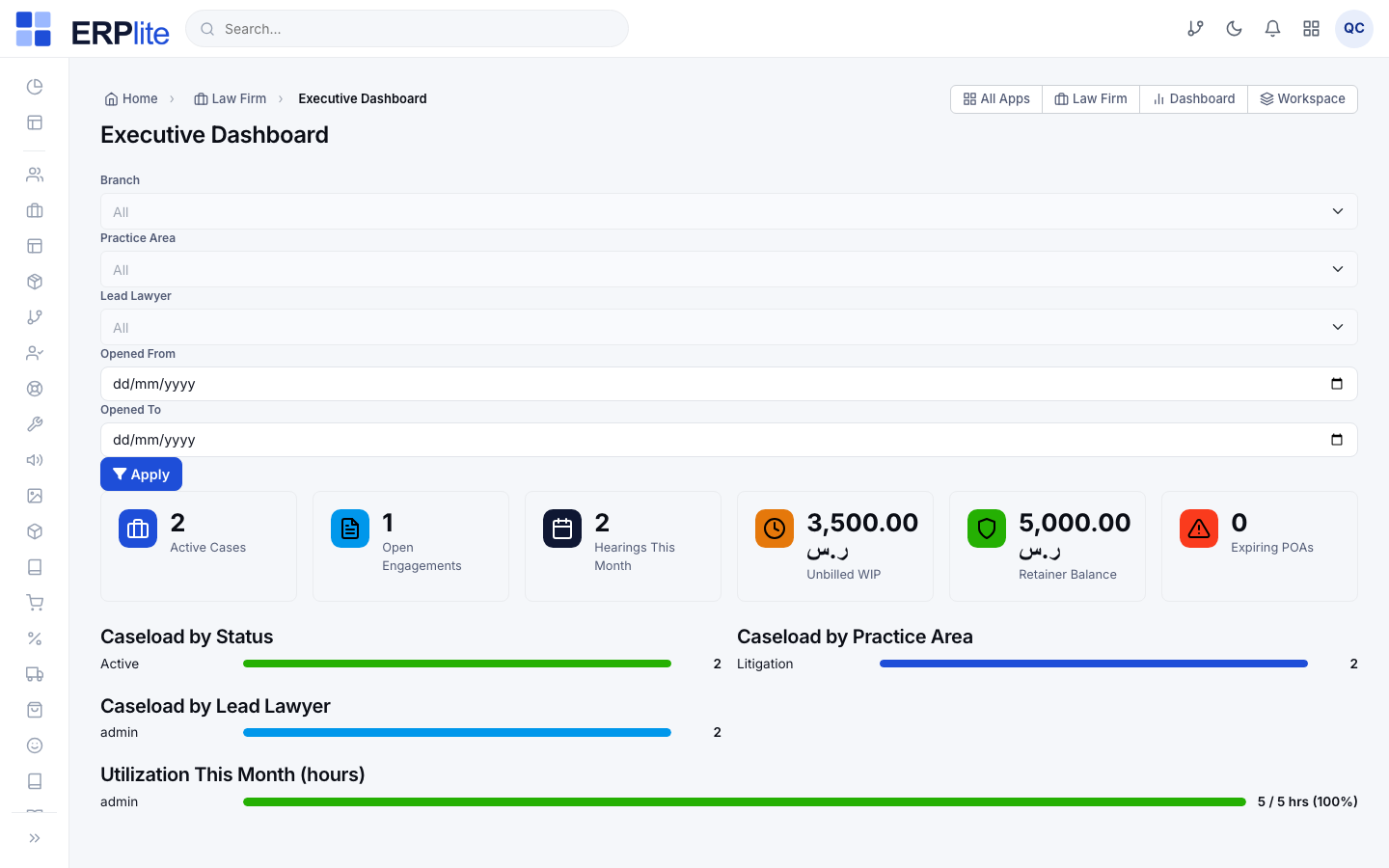
Executive dashboard & reportsلوحة المعلومات التنفيذية · التقارير
Office ManagerLaw Firm › Executive Dashboard · Reports/admin/lawfirm-executive
• The Executive Dashboard (/admin/lawfirm-executive) shows firm-wide KPIs, cases by status, practice area and lawyer, and time utilization — all filterable.
• The Reports hub (/admin/lawfirm-reports) holds five printable/exportable reports: Cases, Hearings Agenda, Revenue by Practice Area, Time Utilization, and the POA Expiry Register.
Every report exports, and each is scoped by your branch and role so a Lawyer sees their branch while a Manager sees the firm.
The reminders run themselves
Three scheduled jobs keep the office ahead of its deadlines every morning:
- ✓Hearing reminders go out early each day for the sessions coming up inside your configured window.
- ✓Task-deadline reminders follow, for tasks and statute-of-limitations dates falling due.
- ✓A power-of-attorney expiry sweep warns you the configured number of days before each POA lapses.
The client portal
Invite the client to a branded, self-service portal to follow their cases, read shared documents and pay online.
Invite the clientدعوة البوابة
Office ManagerLaw Firm › Clients › Send portal invite/admin/law-clients
1) Make sure the client has an email on file.
2) On the client, press Send portal invite.
3) You can toggle a client’s portal access off at any time.
Emails a secure set-password link that expires in 24 hours. The portal is invite-only — clients are not staff users, so this never touches your dashboard logins.
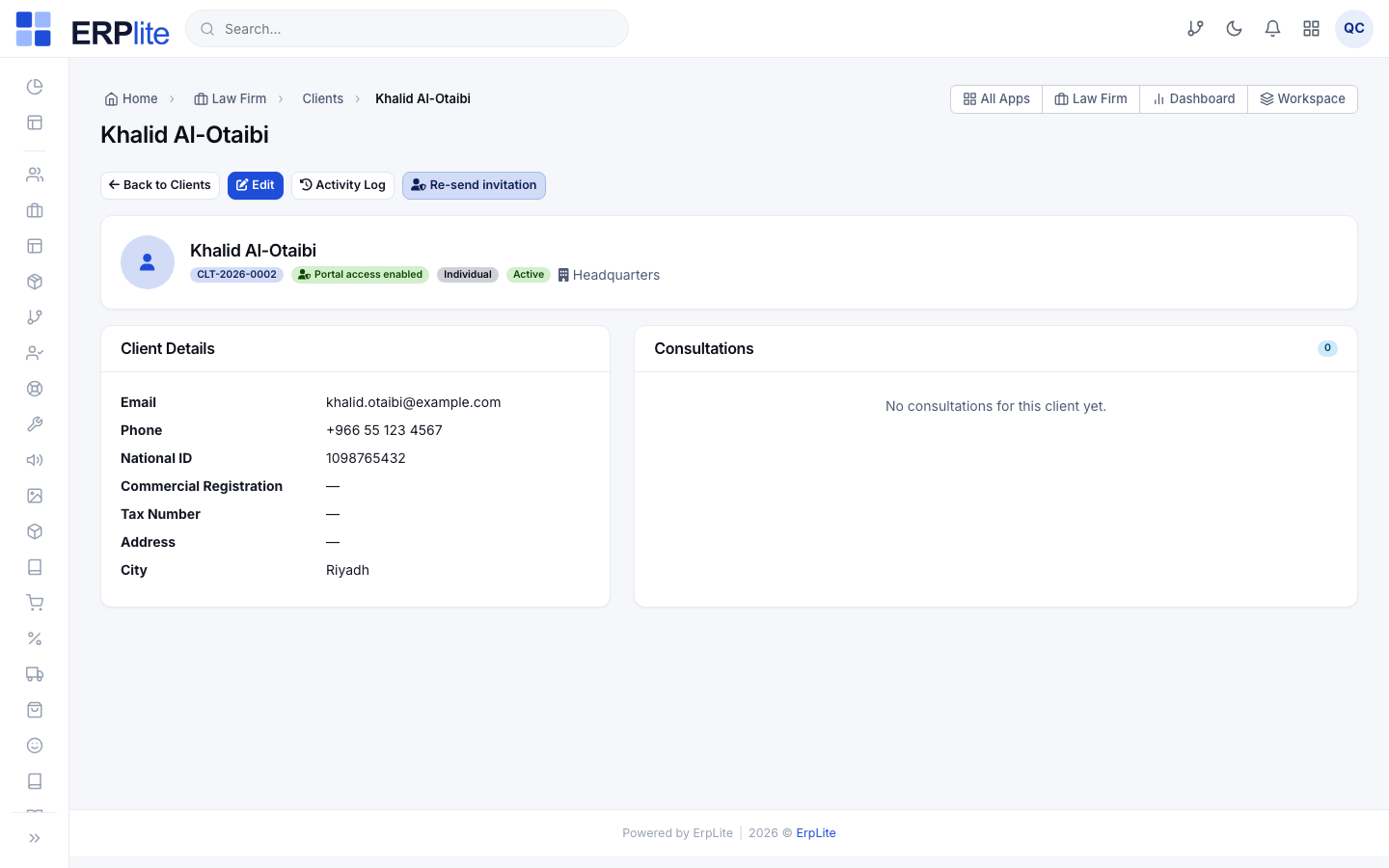
The client signs inبوابة الموكلين
ClientClient Portal › Sign in/client/login
The client opens /client/login and signs in with their email or client number and the password they set from the invite. Forgot-password is self-service, and they can switch the portal between Arabic and English.
Uses a separate client guard with its own access rule — if you switched access off, the portal shows a polite “access unavailable” block instead of the dashboard.
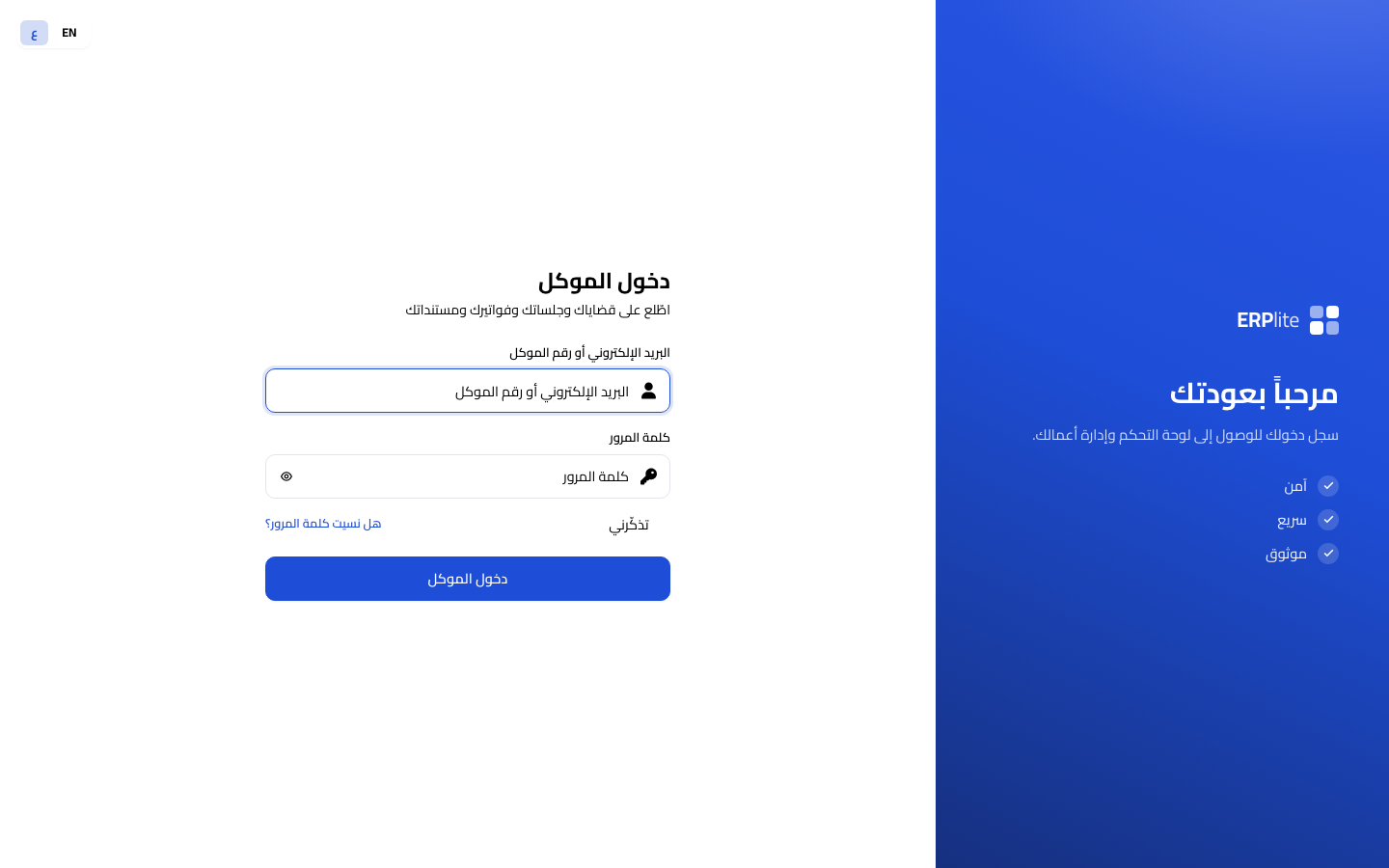
What the client seesقضاياي · مستنداتي · فواتيري
ClientClient Portal › Home/client
From the portal a client can:
• See a dashboard — open cases, upcoming hearings, outstanding balance, recent documents.
• Open My Cases — each with its stage timeline, hearings and the documents you shared.
• Watch My Hearings and download My Documents (only files you explicitly shared).
• View My Invoices and pay online.
• Read their engagement letters, and sign one electronically when you send it for signature.
• Open the Trust statement — every movement of money you hold on their account, in order, with a running balance. A client asking “where did my deposit go” is answered by the page, not by a phone call.
• Raise a Request (a support ticket) and update their profile and language.
Shows the client only their own cases and only the documents you shared — never the whole case file. Online payments settle the same invoice you raised in Stage F.
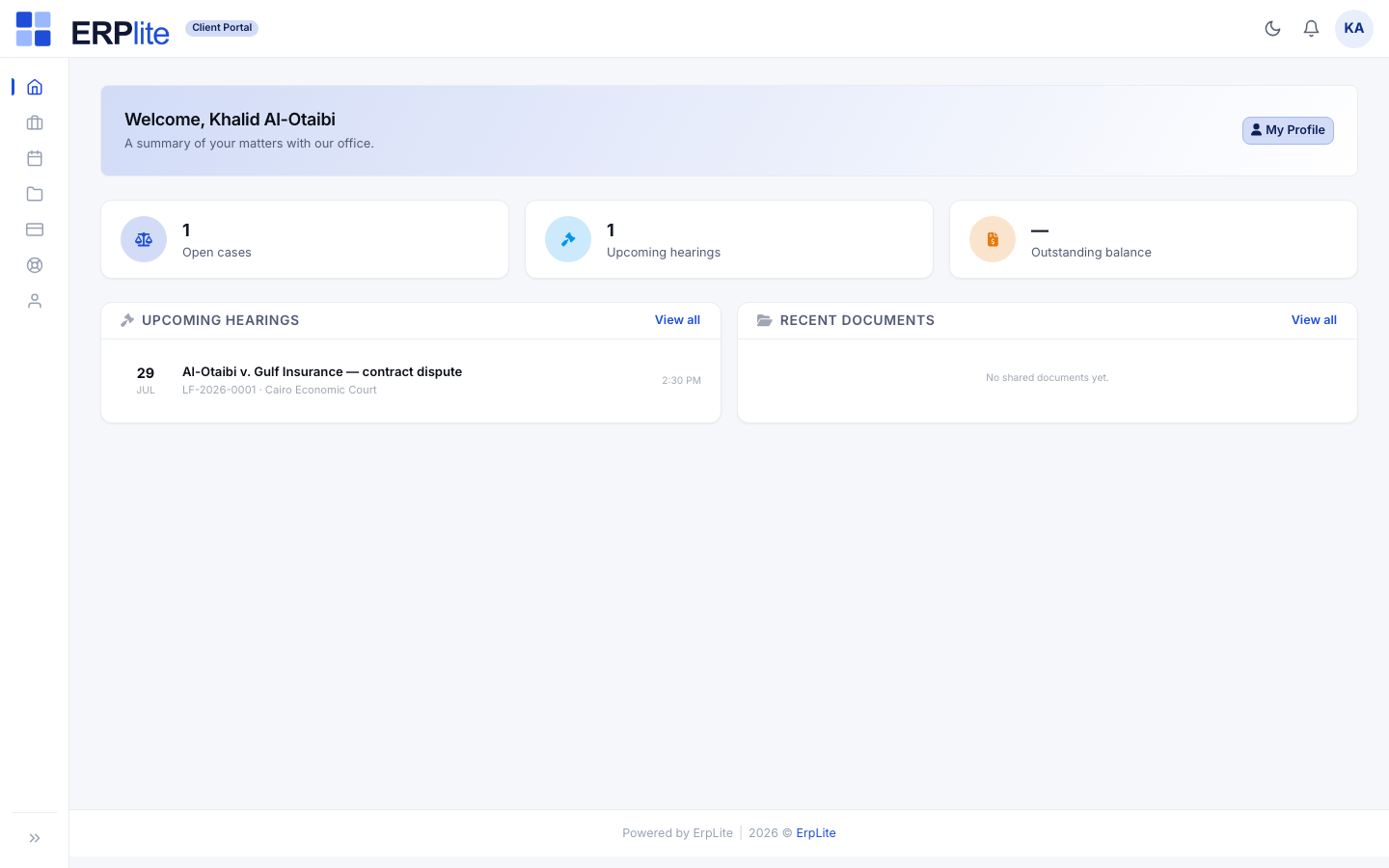
| Who | Where they sign in | What they can do |
|---|---|---|
| Office Manager | /admin | Everything in this manual — firm settings and master data, clients, cases, hearings, powers of attorney, tasks, time, expenses, engagements, retainers, billing, dashboards and reports. |
| Lawyer | /admin | Case work in their branch: clients, consultations, conflict checks, cases, hearings, powers of attorney, tasks, time and expenses — but not firm settings or billing approval. |
| Client | /client | Their branded portal: their own cases with a stage timeline, their hearings, the documents you shared, their invoices (with pay-online), their engagement letters and e-signature, a trust statement of money you hold for them, support requests and their profile. |
Reading the badges
- ✓Automatic = the system does it for you. Office Manager = a manager action in the dashboard (settings, billing). Lawyer = case work in the dashboard. Client = self-service in the client portal. Optional = only if your setup uses it.
- ✓Page paths shown as /admin/… are dashboard screens; /client is the branded client portal. On a SaaS tenant the admin screens live under /portal/… instead of /admin/…, but everything else is identical. The Arabic screen name under each step title is the label you will see in the live right-to-left interface — matching the screenshots throughout.
Working the day
The screens a lawyer actually lives in — the day ahead, the running clock, and the whole history of a matter on one page.
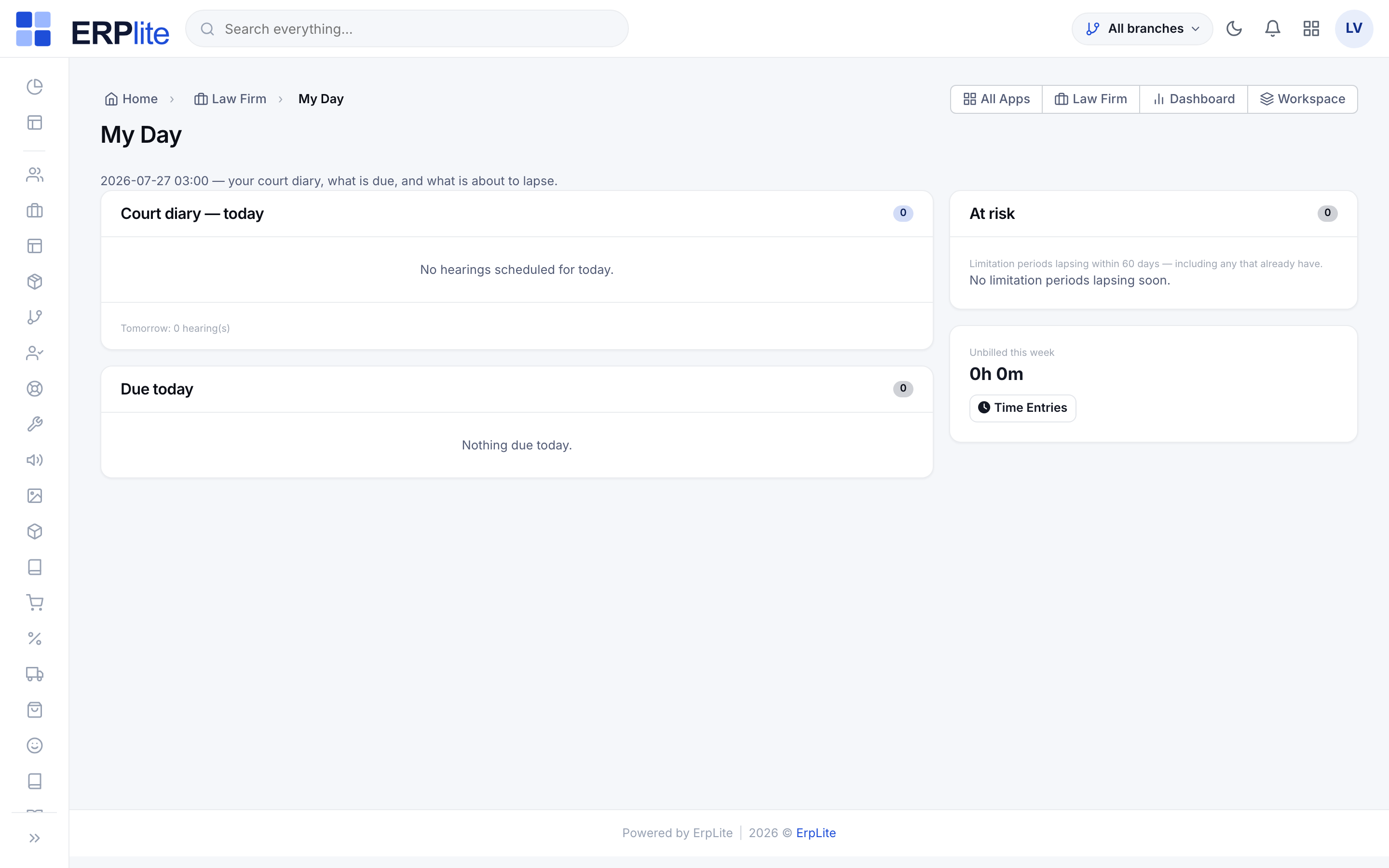
Start from My Dayيومي
LawyerLaw Firm › My Day/admin/lawfirm-my-day
Open My Day first thing. It answers the four questions you ask every morning:
• Which hearings do I have today and tomorrow?
• What is overdue, and what is due today?
• Which of my matters are at risk?
• Is my clock running, and on what?
Every line is a link straight into the record, so you work from this page rather than searching for things.
Shows only your own branch and your own matters, and computes the at-risk list from real signals — silence on the file, overdue tasks, a hearing adjourned too many times, a power of attorney about to expire, unbilled work beyond the retainer, and a limitation period drawing near.
Run the clock while you workالمؤقّت
LawyerAny screen › Timer chip/admin/law-time-entries
Press Start on a matter and work. The running clock follows you as a chip in the top bar on every page, so you never lose it by navigating away. Press Stop and the elapsed time becomes a draft time entry you can describe and correct before it is billed. Discard throws it away — a clock you forgot to stop should never quietly become an invoice line.
Keeps one running timer per person — starting a second one closes the first, because a lawyer cannot be on two matters at the same minute. The rate comes from that lawyer’s rate card as it stood on the work date, not today’s rate.
Read the matter as one storyالتسلسل الزمني
LawyerCases › Case › Chronology/admin/law-cases
Open a case and use the tabs — Overview, Parties, Hearings, Tasks, Time, Expenses, Documents, Chronology, Billing. The Chronology tab merges everything that ever happened on the matter into one ordered stream: it opened, the stage changed, a hearing was held and what was decided, a task was completed, a document was filed, a power of attorney was issued, money moved. It is the tab to open before a hearing or when a colleague hands you a file.
Print the matter file to take the same story into court on paper.
Builds the stream on the fly from the records themselves, so it can never fall out of step with the file. The printable matter file carries the same content in Arabic or English, right-to-left included.
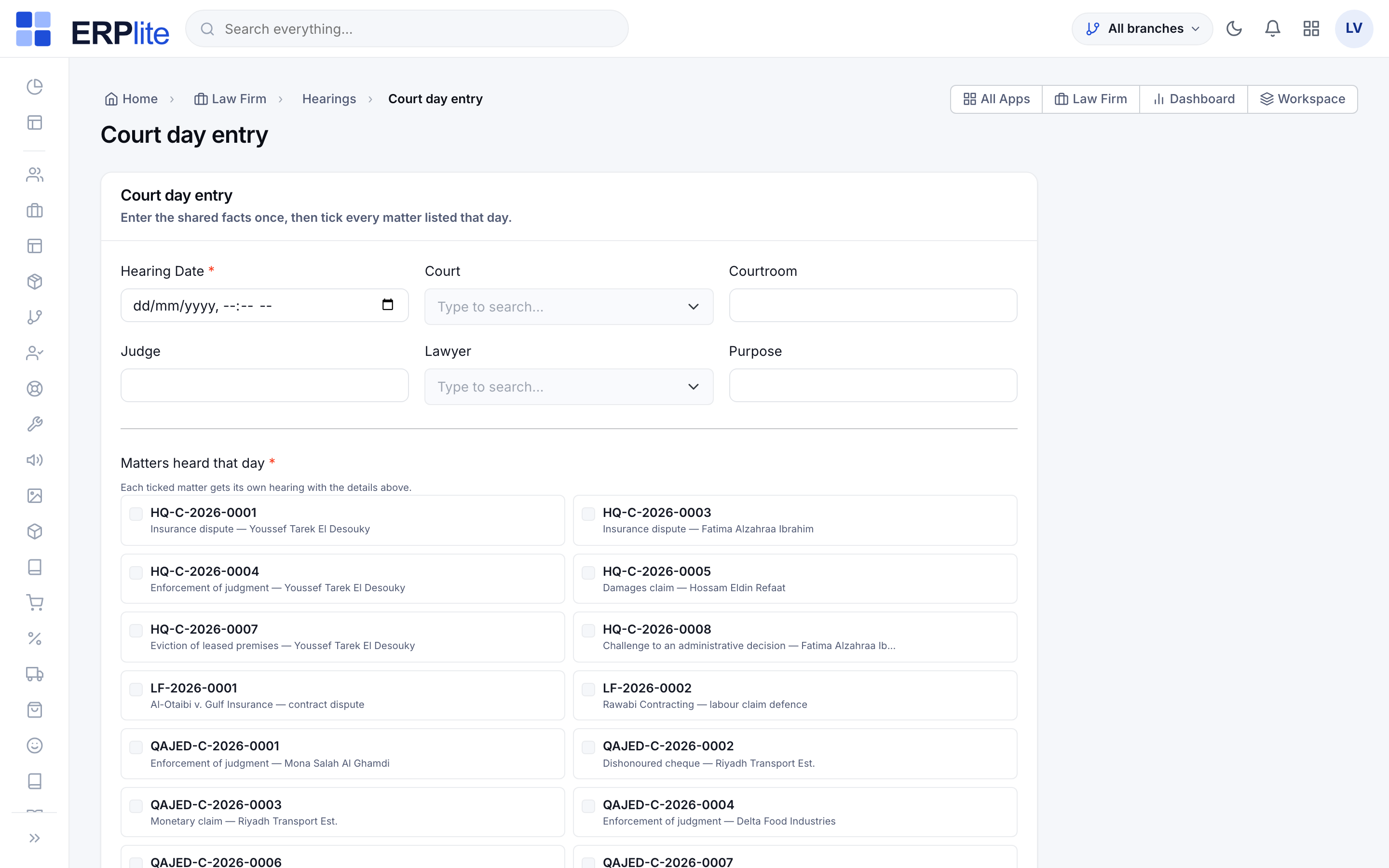
Enter a whole court day at onceإدخال يوم المحكمة
LawyerHearings › Court day entry/admin/law-hearings/court-day
When you have a dozen matters listed at the same court on the same day, do not open twelve forms. Enter the date, court, room, judge and lawyer once, tick every matter listed that day, and submit — one hearing is created per matter.
Stamps each hearing with its own matter’s branch, so a court day that spans two offices files correctly in both. Matters you cannot see are not offered.
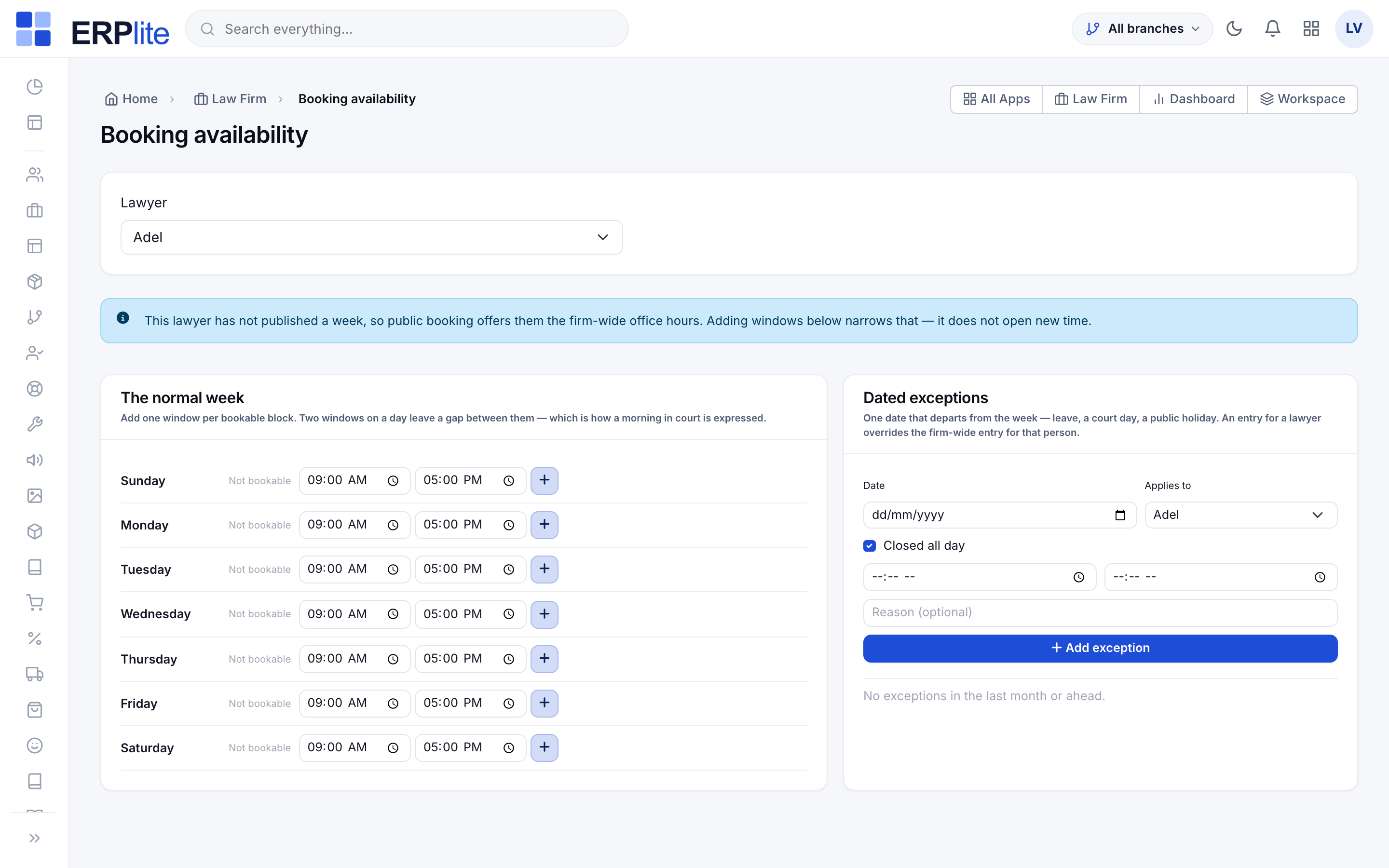
Control when you can be bookedمواعيد الحجز
Office ManagerLaw Firm › Booking availability/admin/law-availability
If the public site takes bookings, publish each lawyer's normal week — one window per bookable block, so a litigator who is in court every Sunday morning is simply not offered then. Two windows on a day leave the gap between them free of appointments.
Then add dated exceptions: leave, a court day, a public holiday. Leave the lawyer blank and the exception closes the whole office; name one and it overrides the office entry for that person.
A lawyer with no published week keeps the firm-wide office hours — publishing a week narrows availability, it never opens new time. Nothing is reserved until the visitor actually books, and the slot is re-checked at that moment, so two people choosing the same time seconds apart cannot both get it.
Keyboard shortcuts
- ✓Press ? anywhere in the Law Firm screens for the shortcut sheet. t logs time, n adds a task, h books a hearing; g then c goes to Cases, g then h to Hearings, g then d to My Day. Shortcuts never fire while you are typing in a field.
AI assistance
Optional, off until you turn it on, and never the final word. The assistant proposes; a lawyer decides and signs.
Before anything else
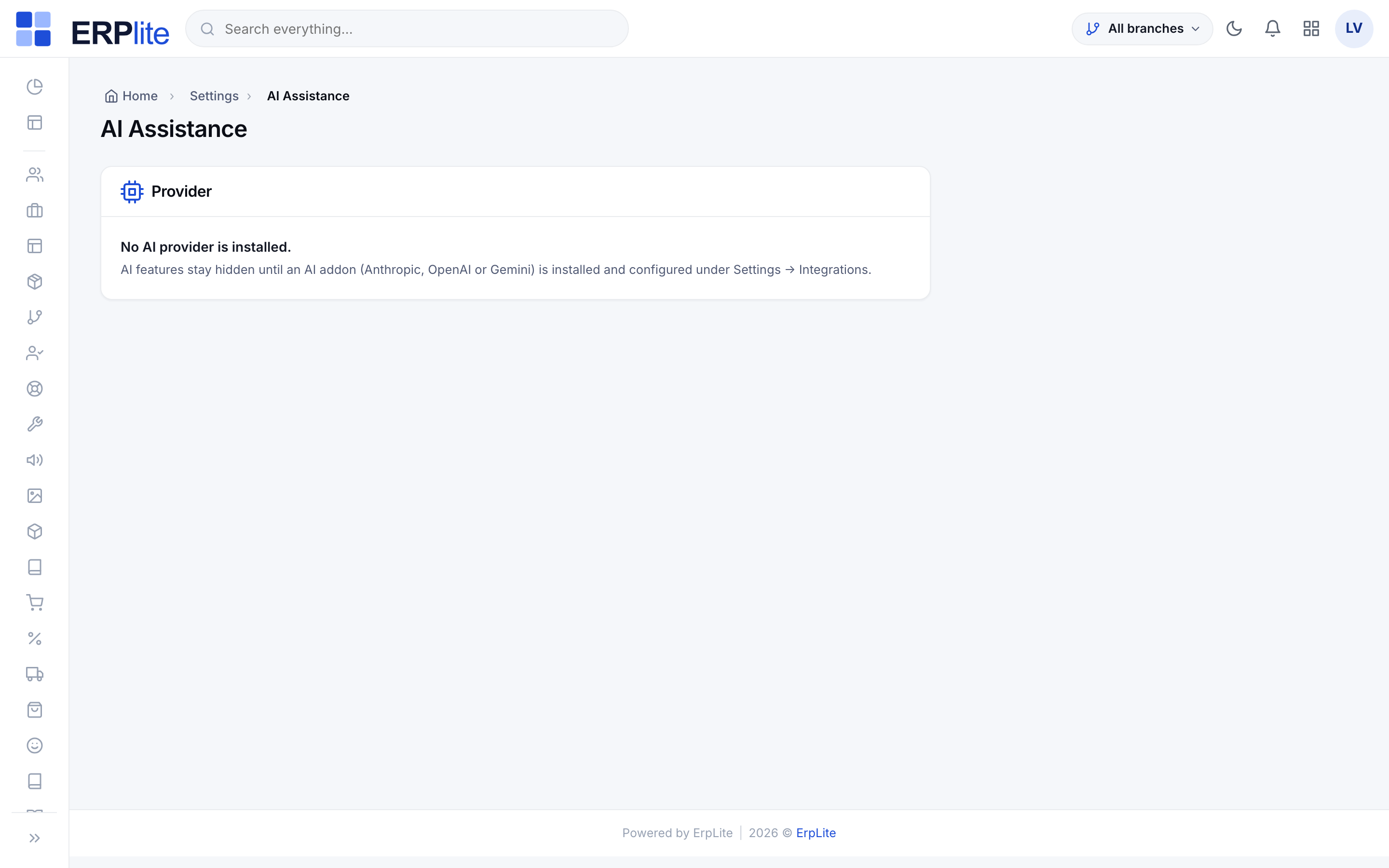
- ✓If your firm has not installed an AI provider, this chapter does not apply and you will not see a single AI button anywhere — the screens look exactly as they did before. Nothing is sent anywhere until an administrator switches AI on and records the data-sharing consent.
- ✓The assistant never files, sends, signs or posts anything, never clears a conflict of interest, and never sets a statutory deadline. Deadlines come from the rules engine, which is the authority.
Turn it on and set the budgetإعدادات الذكاء الاصطناعي
Office ManagerSystem › AI Settings/admin/ai-settings
Switch AI on, record the data-sharing consent, choose how much detail is masked before anything leaves the building, and set a monthly request budget with what should happen when it runs out — warn, or stop. Decide whether documents may be sent at all, and how large they may be.
Masks national IDs, commercial registrations, bank accounts, phones and emails by default while keeping names — a brief without names is useless — and puts the masked values back into the answer before you read it. Every run is written to an audit log with who asked, on which record, what it cost, and what came back.
On the matterملخّص القضية
LawyerCases › Case › Overview/admin/law-cases
Ask for a case brief and you get a headline, the procedural posture, the key dates, the risks and the suggested next steps — in Arabic and English together. Paste your corridor notes after a hearing and the outcome form fills itself in for you to correct. Ask for follow-ups and you get a checklist where rule-derived deadlines are marked as such and the assistant’s own ideas are marked as suggestions; you tick the ones you want and only those become tasks.
Writes nothing until you select and submit, and records what was created against the run that suggested it. A rule-derived date always names the rule that produced it — that mark is the difference between a computed deadline and an idea.
On documents and intakeتحليل المستند
LawyerDocuments › Document/admin/law-documents
Analyse a scanned document and get its type, date, parties, obligations, amounts and risks — searchable afterwards, not just read once. On a judgment, extract the ruling and the date the appeal period starts, then let the rules engine compute the deadline. On a scanned power of attorney, read the principal, agents, scope, notary number and expiry straight into the form. On a receipt photo, read the vendor, date and amount into an expense.
A consultation that arrives from the website or the portal is triaged for you overnight — practice area, urgency, a suggested lawyer, and a list of what the client forgot to tell you.
Hides every document feature when the configured provider cannot read files, rather than failing when you press it. A file over your size limit is refused with a plain message, not a silent truncation — half a judgment read is worse than none.
Before the invoice, and for the clientمراجعة الفاتورة
Office ManagerEngagements › Billing/admin/law-engagements
On the confirm step before you bill, ask for a narrative review. It flags block-billing, vague verbs, duplicates, anything privileged that should not travel to a client, and breaches of that client’s own billing guidelines. Fix what you agree with; ignore what you do not.
Anywhere you are writing to a client, Explain to client rewrites a legal paragraph into plain Arabic and English. You read it, you edit it, you send it — the system never sends it for you.
Never blocks billing — a review is advice, and a provider being unavailable must not stop you invoicing. Nothing it says is written to a posted invoice.
The portal assistant
- ✓You may also let clients ask questions about their own matter inside the portal. It is off unless you switch it on, it is scoped to one case at a time, and it can only see what that client can already read on the page — including only the documents you shared. It answers about status, never about law, and points the client to you for anything else. Every answer is logged so you can see exactly what was said to whom.